How to run Autopilot Search using Ciro’s Database
Last updated September 5, 2025
Ciro’s Autopilot database lets you search across 500M+ contacts using AI — surfacing your best-fit leads in minutes.
📍 Getting Started
- Log into your account ( here ) or create a new one
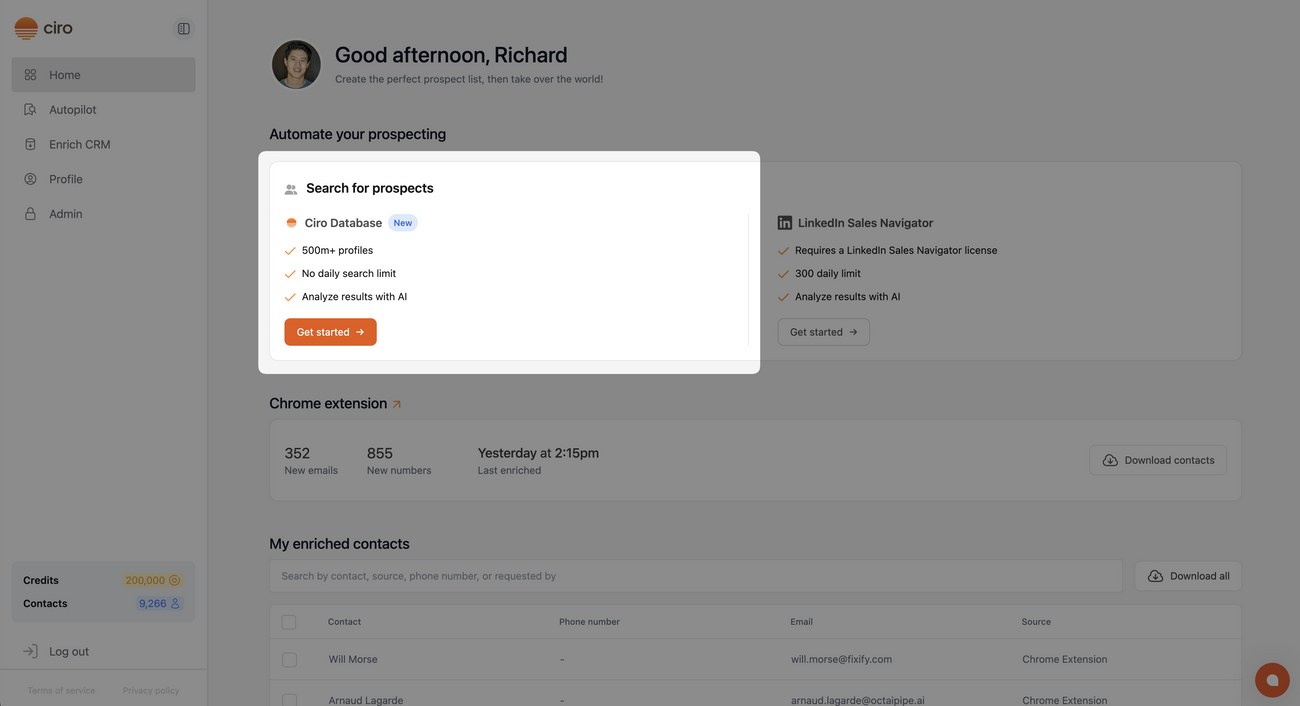
- Once you're in, click Get started under Ciro Database:
👉🏼 Start with a description of your ideal customer
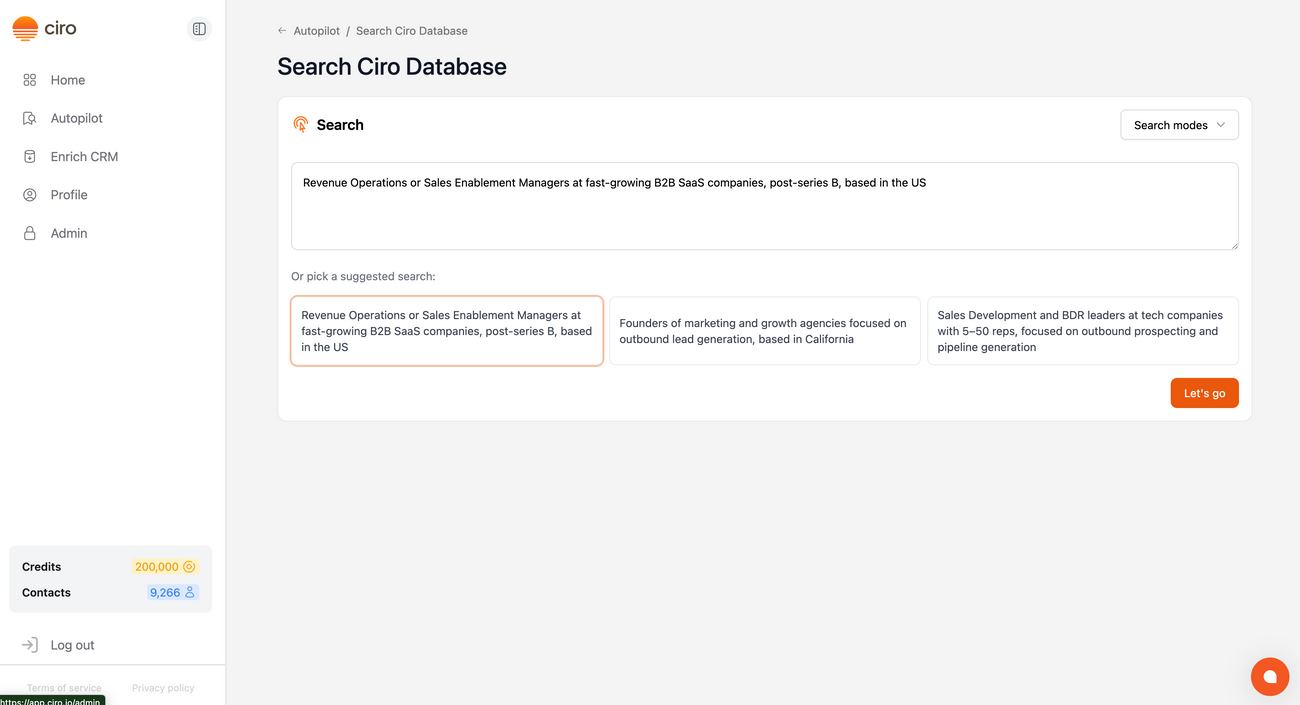
- Enter a description of people you'd like to build a list on
- We call this your Ideal Customer Profile (ICP) [link when live]
- Alternatively, try Ciro's suggested searches, listed below the search bar, that Ciro's tailored to your company
- Note, there are also two searches modes [link when live] in the top right:
- Start from prior search — reuse a search you've run in the past
- Search specific companies — when you want Ciro to build a list within a specific set of companies
- Click “Let’s go” to get started
🔍 Generating your Scoring Criteria and Search Filters
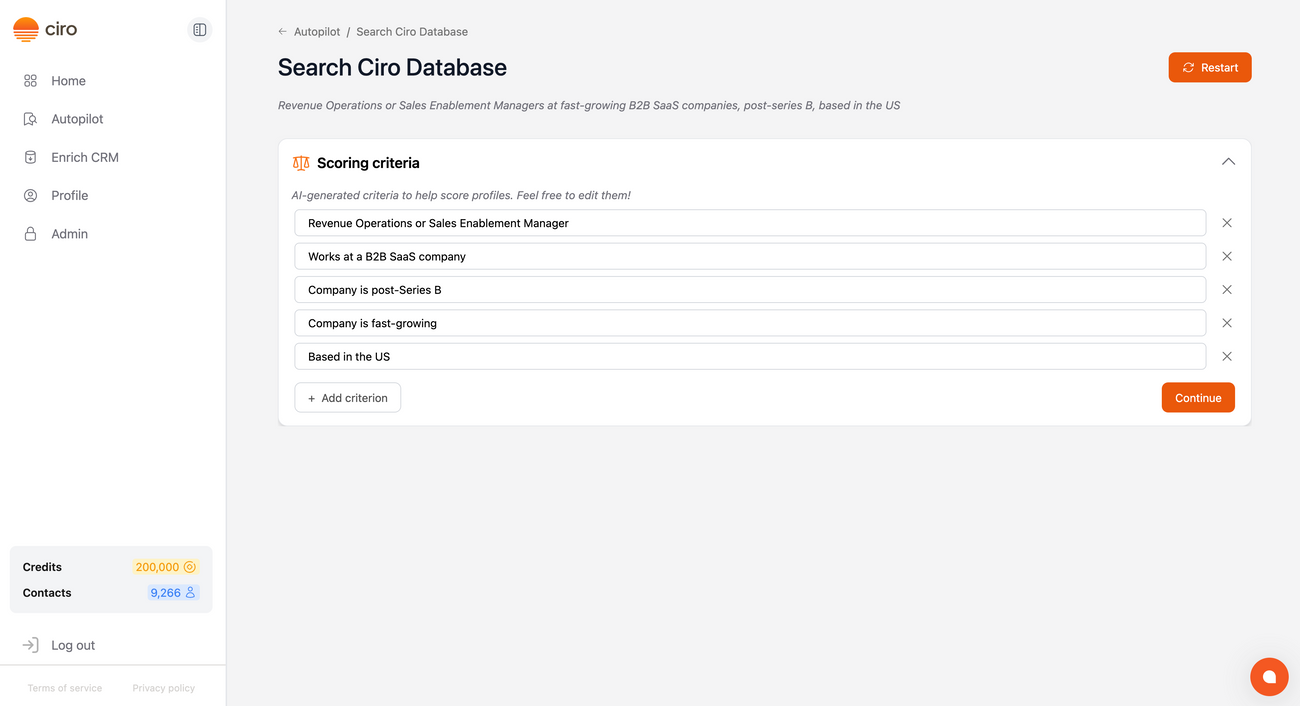
- Once you click “Let’s go”, Ciro will present you with the Scoring Criteria it plans to use:
- These are Ciro-generated rules used to score and prioritize leads based on your ICP
- Feel free to review and adjust them before continuing
- Click “Continue” to confirm these are the key criteria in your search

- Ciro will scout ahead and run two parallel searches strategies:
- Using Industry & Keywords - a broad search that looks across industries and specific keywords
- Using Specific Companies - a focused search where Ciro will find a qualified group of companies, before filtering for people
- Once Ciro analyzes both search strategies, it'll recommend the better-performing path and the filters it plans on using
- From here, click "Preview results" to see some of the profiles it's found for you
📖 Review Your Preview Results
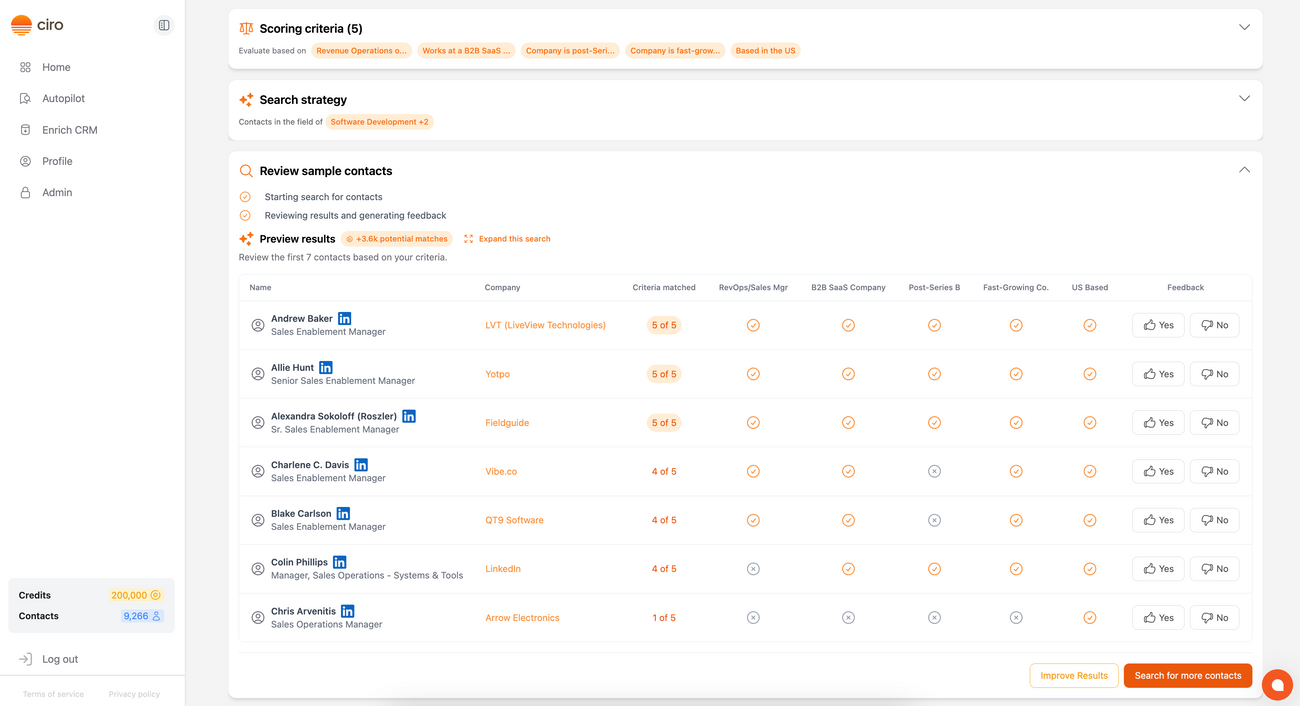
- After your search completes, you’ll land on the Preview results page
- Ciro highlights matched criteria using orange checkmarks. You’ll see how many criteria each contact meets
- The yellow checkmarks indicate strong alignment with your ICP
- The Feedback column lets you give Ciro a thumbs up/down on each contact
- To refine your search:
- Adjust filters and scoring by uncollapsing the Filters and Search Criteria bar at the top. You can also switch search strategies (from Industry & Keywords to Specific Companies)
- Click “Improve results” to give feedback (learn more here)[link when live] — and Ciro will update your filters and scoring to better match your ICP
- Click “Expand search” if your results are too narrow (learn more here)[link when live] — and Ciro will generate new search paths to explore your market
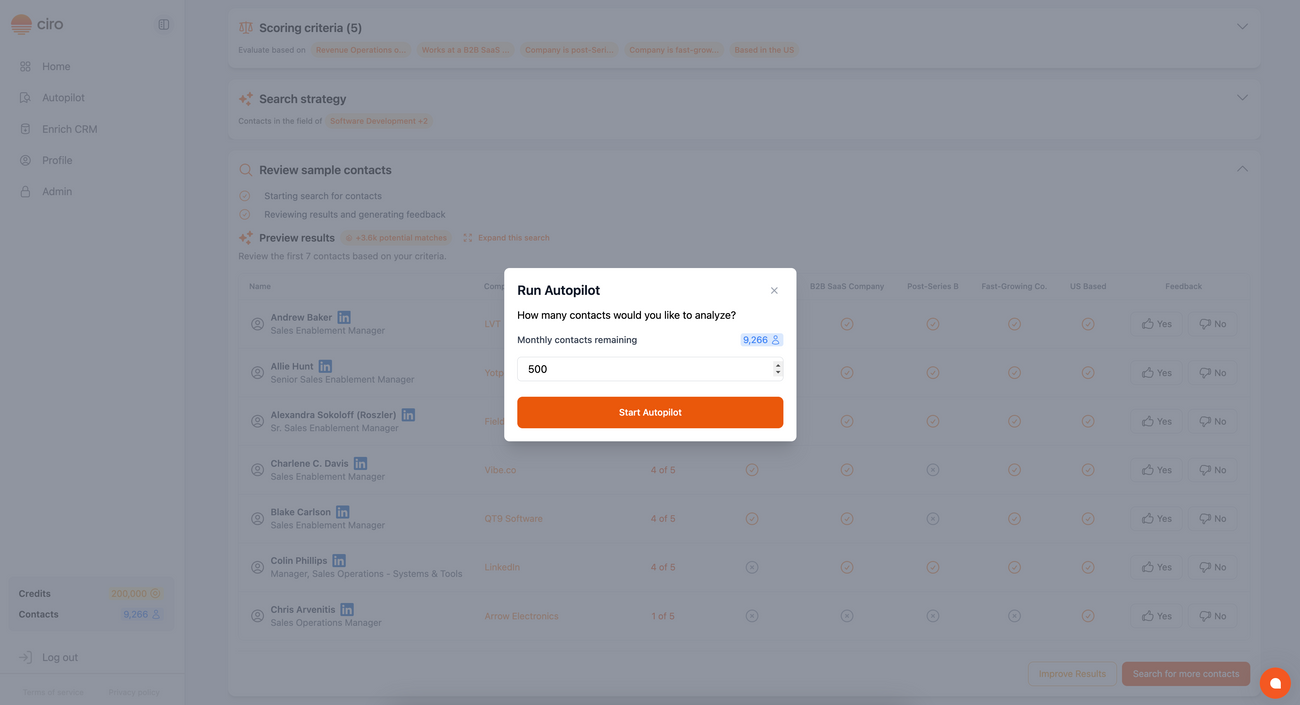
- When you're ready to proceed, click “Search for more contacts”
- Enter the number of contacts to analyze, then click “Start.”
✅ Review and Enrich Contacts
Once your search completes, you can:
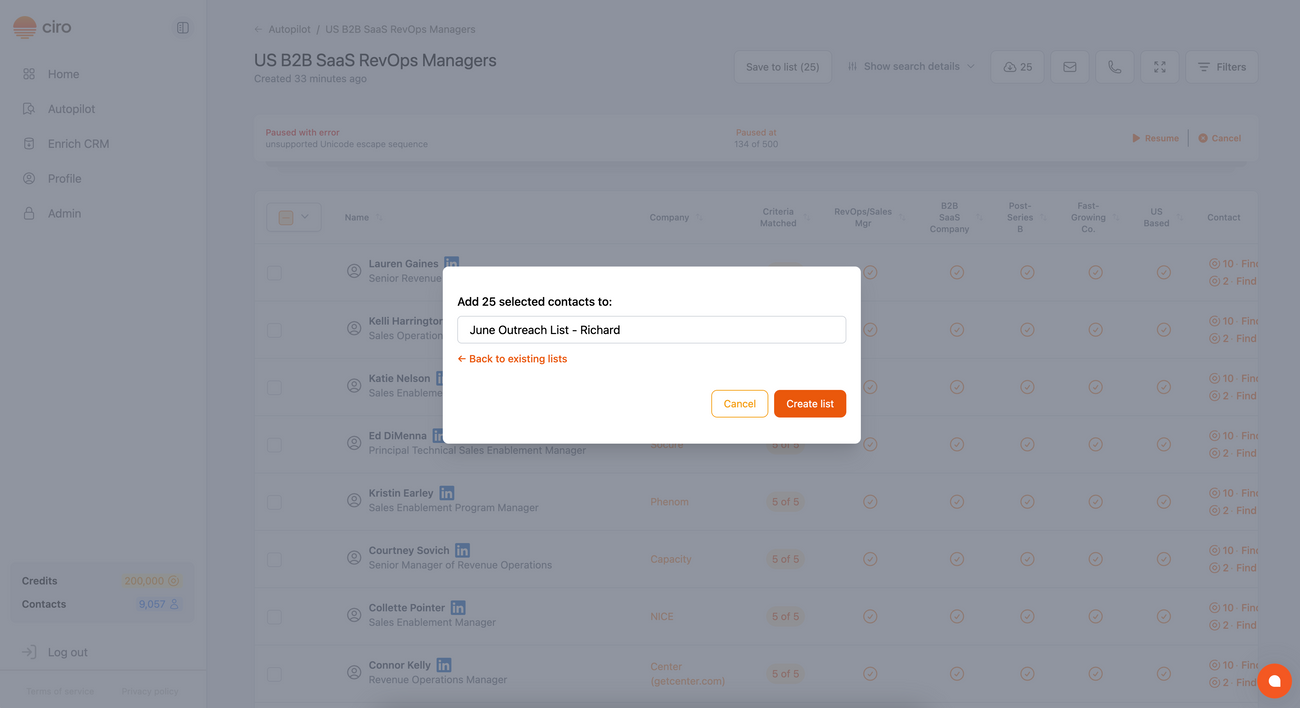
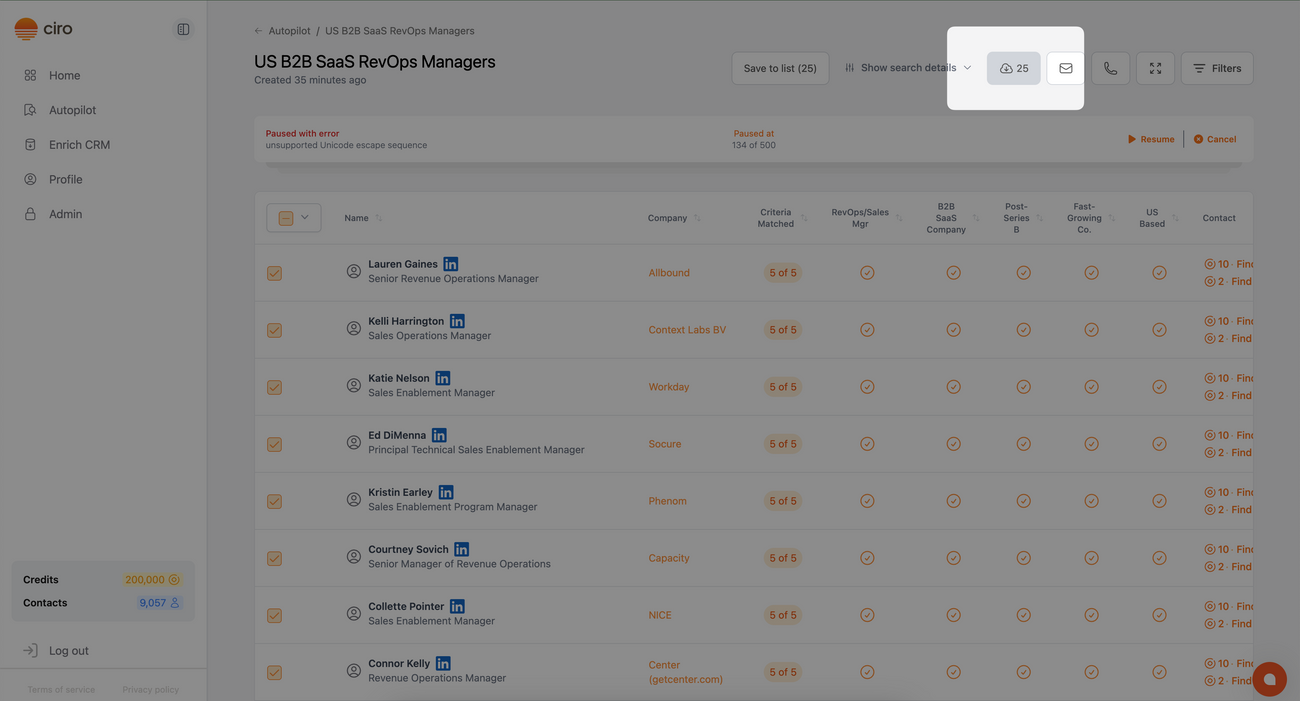
- Organize these contacts by saving them to a Ciro list (select contacts → Click “Save to list” in the toolbar):
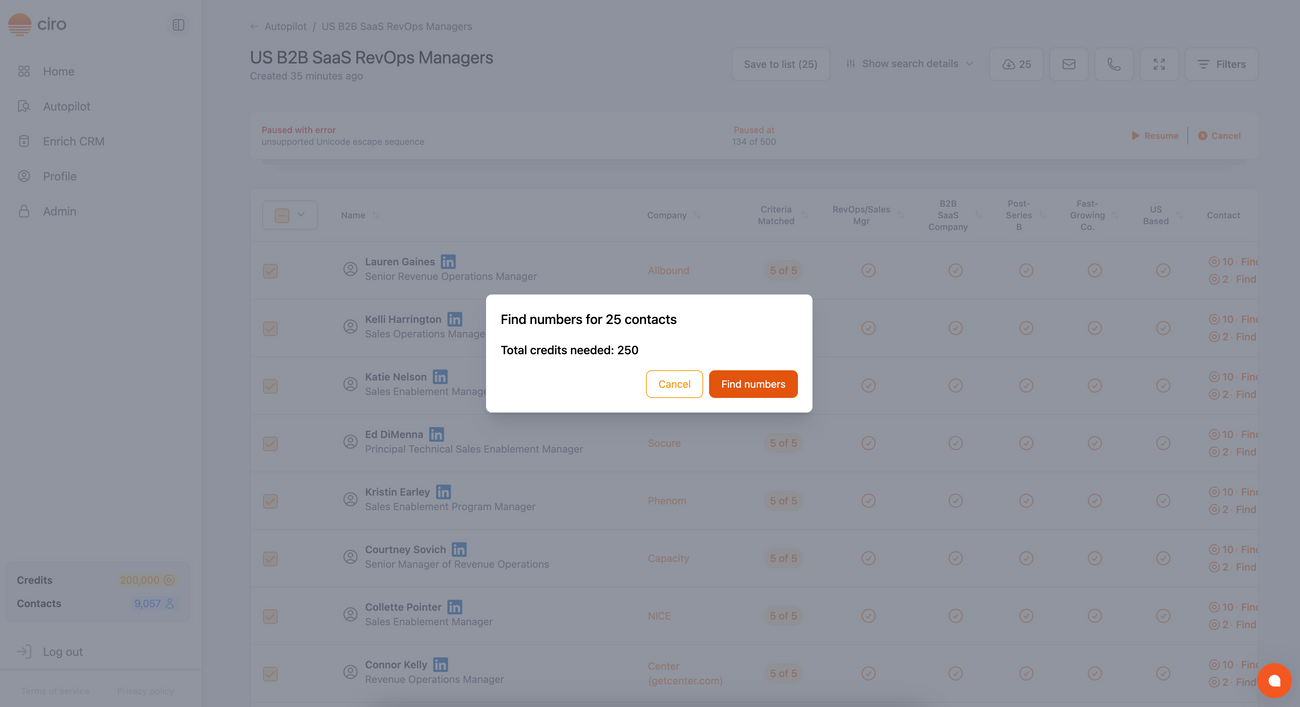
- Enrich the contacts with phone numbers and emails:
- In bulk: Select the contacts you want to enrich → click the email or phone icon in the toolbar
- Individually: Click “Find number” or “Find email” in the last column
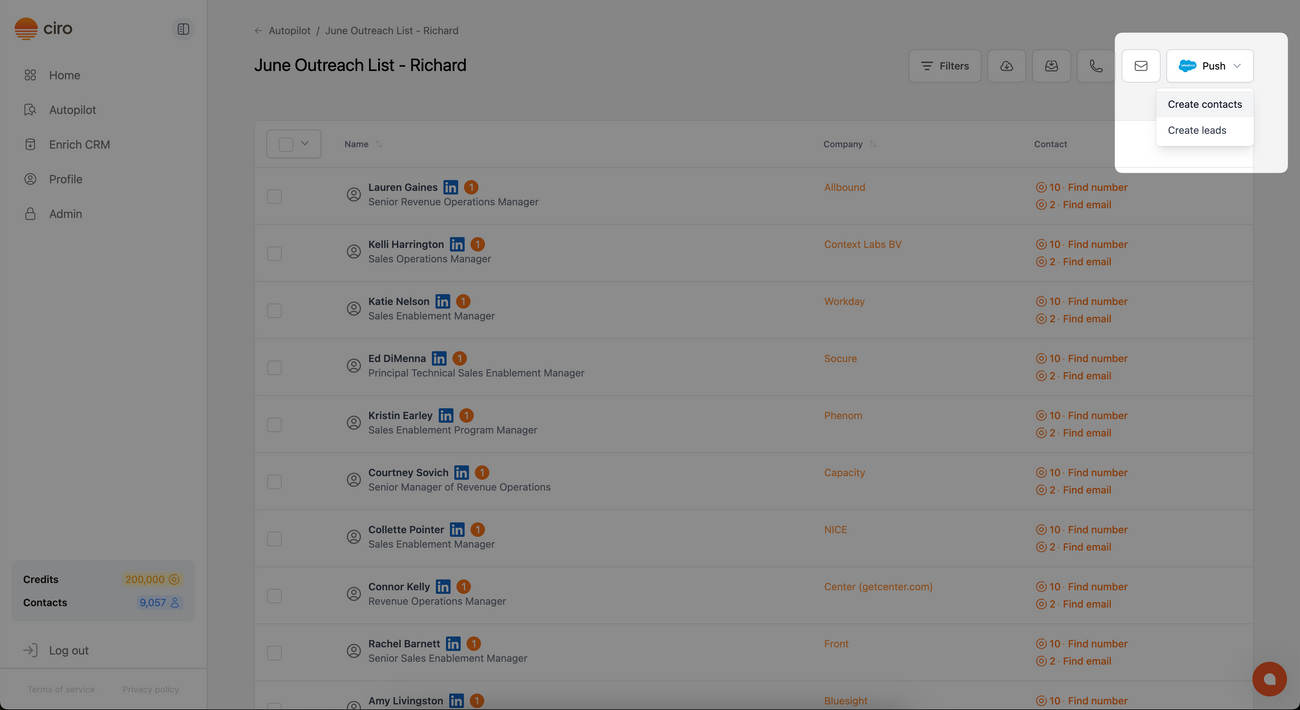
- Push to CRM (available on paid plans only) — once you've added your contacts to a list, export them to your CRM [link when live]:
- Export to a CSV — by clicking the export icon in the toolbar
Log in to Ciro and run your first search.
Need more help? Browse all guides in the Ciro Help Center [link when live]
Was this article helpful?