Audit Tool l For Managers
Last updated December 3, 2025
The Audit Module is a tool designed to streamline and manage all organizational audits efficiently. It supports comprehensive oversight by managing audits across two key dimensions:
- Type of Audit
- Type of Document Being Audited
To ensure audit accuracy and compliance, it’s essential that all policies and procedures are up to date before conducting audits.
The Audit Module provides a structured, efficient way to manage and document all audits across your organization, ensuring compliance, consistency, and accountability for both internal and external partners.
Types of Audits
1. Regulatory Audit
Conduct audits required by external regulatory bodies such as:
- CMS (Centers for Medicare & Medicaid Services)
- DHCS (Department of Health Care Services)
- DMHC (Department of Managed Health Care)
These audits ensure your organization meets all mandatory regulatory standards.
2. Delegate Audit
Perform audits on external delegates or downstream entities to verify compliance with your organization’s standards and contractual obligations.
3. Internal Audit
Evaluate internal departments to assess:
- Operational processes
- Policy adherence
- Internal compliance and efficiency
Types of Documents Audited
1. Policies and Procedures
- Review and verify the accuracy, completeness, and compliance of your organization’s formal policies and procedures.
2. Case Files
Examine individual case files to confirm:
- Accuracy of information
- Compliance with regulatory and internal standards
How To Access The Audit tool?
The Audit Tool Module serves as the central hub for managing both Internal and Delegate audits.
Steps to Access:
- Log in to Readily: https://app.readily.co/
- From the left-hand navigation menu, click Audit Tools.
- On the Audit Tool Home Page, locate the toggle in the top-right corner to switch between audit types:
Note: Only one audit mode can be active at a time. The active mode will be visually highlighted.

Internal Audits
- Use this mode to evaluate your organization’s internal departments, processes, and compliance with established policies and procedures. This ensures that all internal operations align with regulatory standards and company expectations.
Delegate Audits
Select this mode to conduct audits on downstream entities or delegated partners.
These audits help verify that all delegates adhere to contractual obligations, compliance requirements, and your organization’s operational standards.
How to Create an Audit?
Step 1: Access the Create Audit Tool
- Navigate to the top-right corner of the Audit Tool.
- Click Options.
From the dropdown, select Create Audit Tool.

A modal window will appear, prompting you to enter the details for your new audit.

Step 2: Select Audit Type and Complete Audit Details
- Select Internal or Delegate.
- Fill out the fields to define the scope and parameters of your audit. All fields include drop-down selections, except for Audit Name.
Step 3: Create and Launch
Once all fields are completed:
- Review your entries for accuracy.
- Click Save or Create to finalize the audit setup.
Your new audit will now appear in the Audit Tool Dashboard,
Step 4: Go to the Audit tool Dashboard. Click on the Detailed Tab
- Select the Audit you’ve created in the Detailed tab.

- Click Start by Adding Requirements

- On the right top of the page, select Table and add a policy. Use the Search Packages to search for a policy, then Add to Audit. You can add multiple Policies.
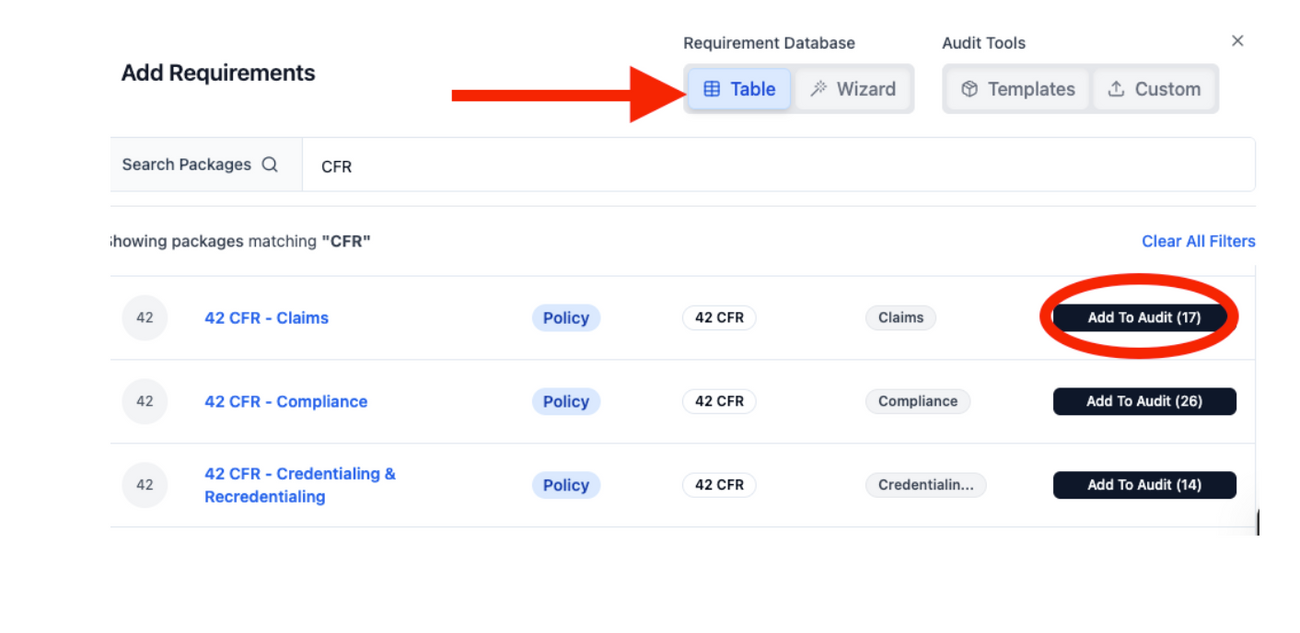

- After adding the policy, select Templates and add a template by clicking To Audit tool. You can upload your template by selecting Custom.

Step 5: Assign the Audit to a team member
- Once you have added the requirements to the audit, go back to the Audit tool , click the Detailed tab and select the name of the audit.

- The List view, assign the the audit to a member. Search the name of your team member. Once you have assigned the member, they will receive an email notification.

Color Coded
- Blue is specifically for the Managers’ task.

- Yellow is specifically for the Auditors’ task.
Best Practices
- Review audits weekly using either the Grouped View (for a high-level summary) or the Detailed View (for task-level tracking).
- Check for outstanding tasks, ensure both you and your auditors have no pending or overdue items.
Update task statuses immediately when work is completed to keep dashboards accurate.