Verifying Note Using Transcript and Note Citations
Last updated October 24, 2025
Note Citations Feature - User Guide
Overview
The Note Citations feature provides an intelligent way to trace and verify the sources of information in your clinical notes. It shows you exactly which parts of your visit notes are supported by evidence from patient transcripts, helping you ensure accuracy and completeness in your documentation.
What Are Note Citations?
Note Citations create a visual connection between:
- Visit Notes: The clinical documentation you create
- Transcript Data: Audio recordings from patient encounters
The system analyzes your notes and identifies which sentences are "cited" (supported by evidence) and which may need additional documentation or verification.
How to Access Note Citations
Prerequisites
- You must have a patient note open in the system
- Citation data must be available for the note (this is processed automatically when transcripts are present)
Accessing the Feature
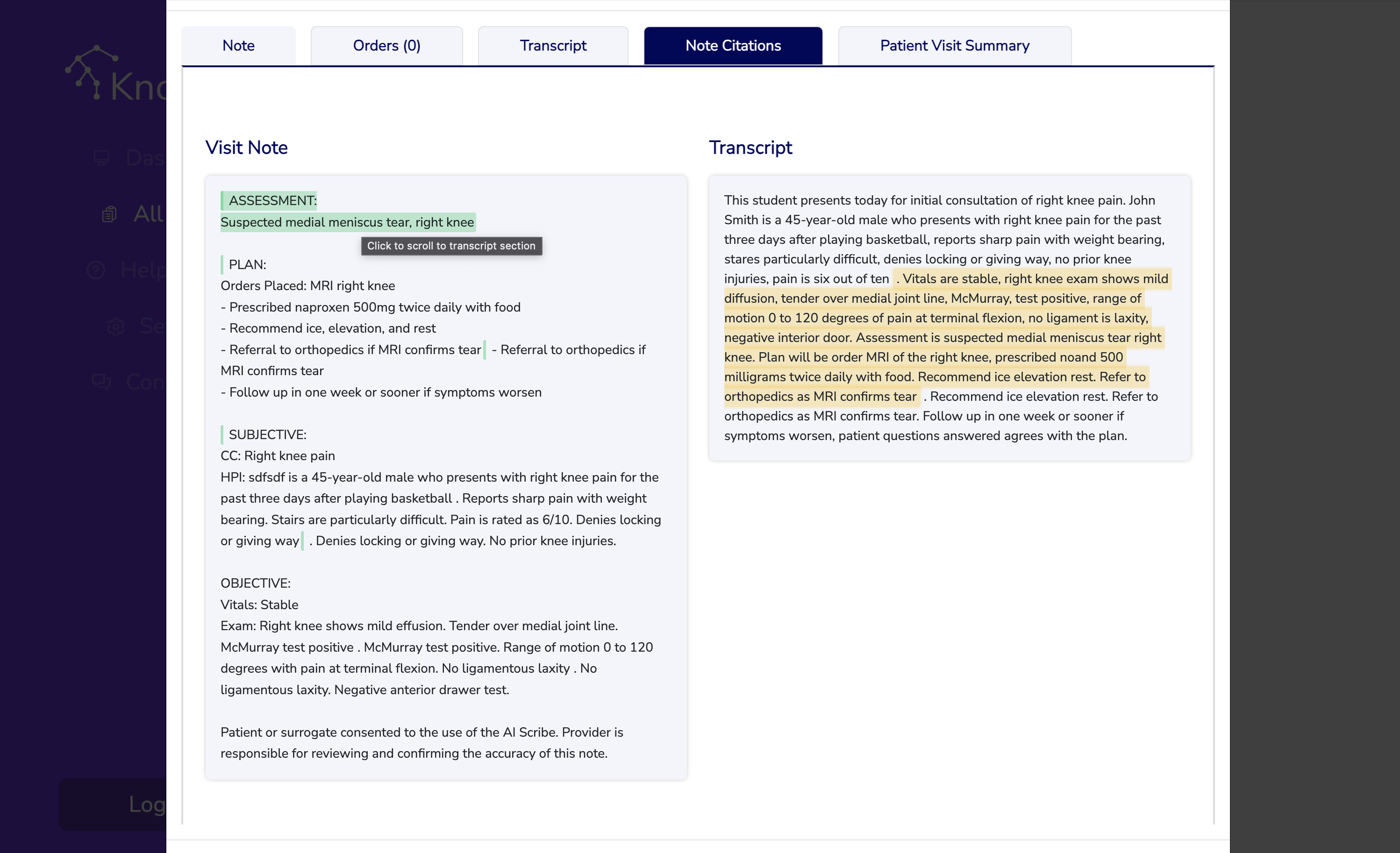
1. Open a Patient Note: Navigate to any patient in your note list and click to edit their information 2. Look for the Citations Tab: At the top of the patient editing interface, you'll see several tabs including "Note Citations" 3. Click the Citations Tab: The "Note Citations" tab will only appear if citation data is available for that particular note
> Note: If you don't see a "Note Citations" tab, it means either: > - No transcript data is available for this patient encounter > - Citation processing is still in progress
Understanding the Citations Interface
The Citations view is divided into two main sections:
1. Visit Note (Left Panel)
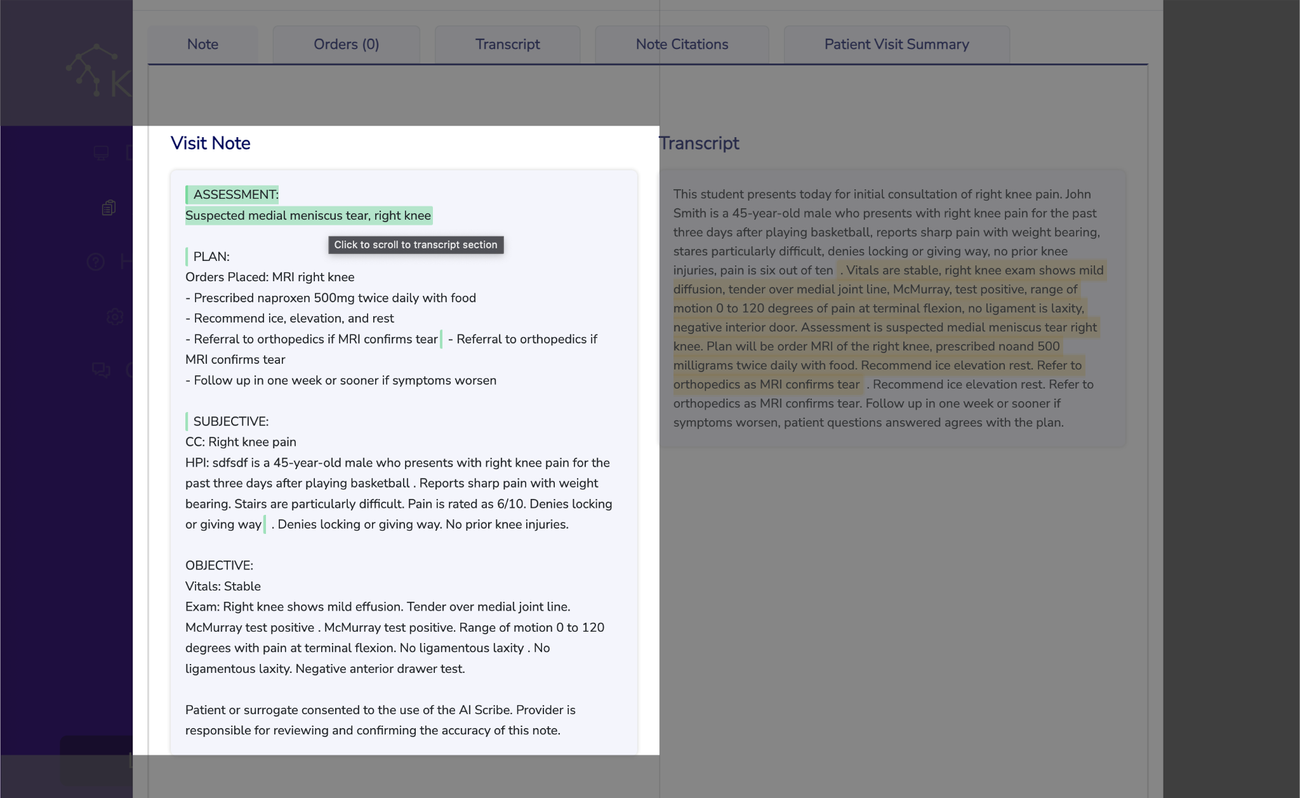
- Displays your complete clinical note
- Interactive Sentences: Hover over any sentence to see if it's cited
- Visual Indicators:
- Green highlighting: Appears when you hover over cited sentences
- Green left border: Indicates sentences that have supporting evidence
- No highlighting: Sentences without supporting citations
2. Transcript Section (Right Panel - Top)
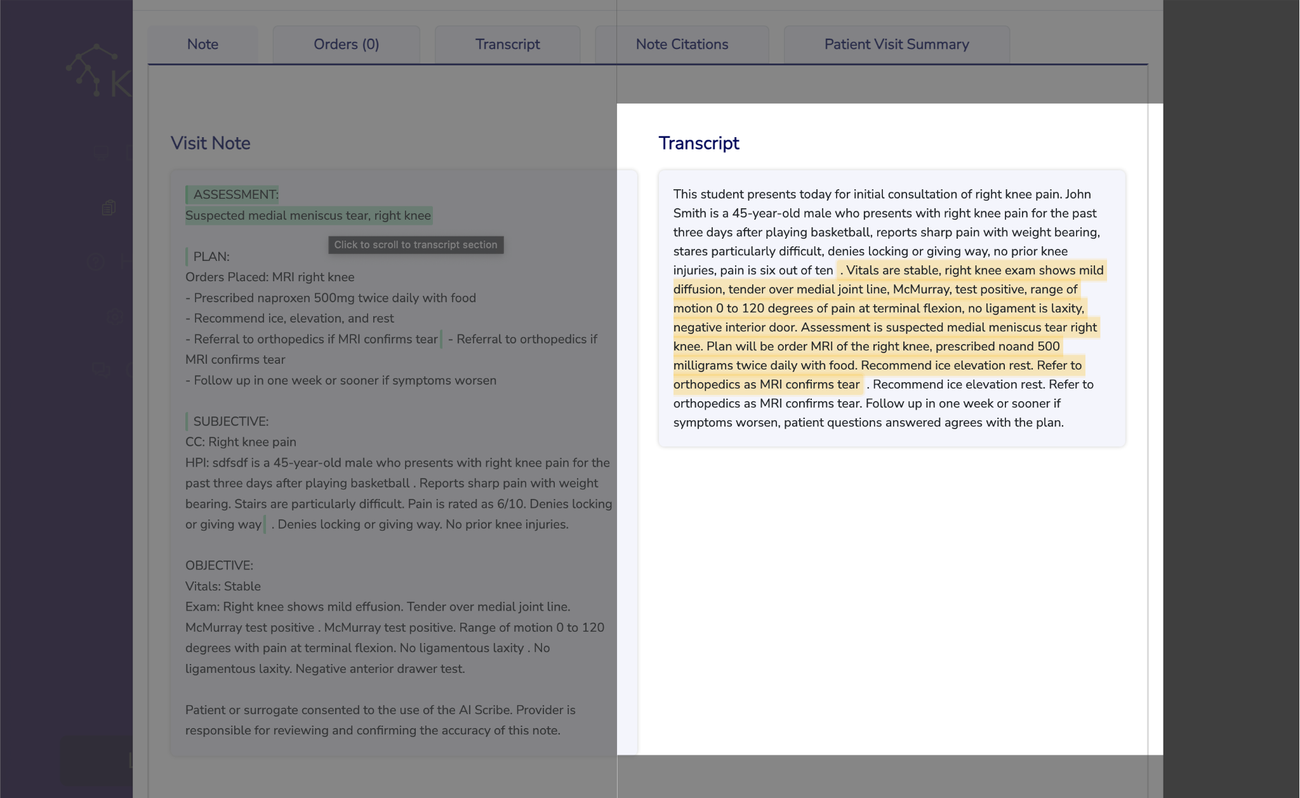
- Shows the audio transcript from the patient encounter
- Automatic Highlighting: When you hover over a cited sentence in your note, the corresponding transcript section highlights in yellow
- Full Transcript Available: When complete transcript data is present, you'll see a "Full transcript" badge.
How to Use Note Citations
Step-by-Step Usage
1. Review Your Note: Start by reading through your visit note in the left panel
2. Identify Citation Status:
- Hover over each sentence to see if it has supporting evidence
- Look for the green left border indicating cited content
3. Verify Sources:
- When you hover over a cited sentence, the system automatically scrolls to and highlights the source material
- Yellow highlights show transcript sources
4. Focus on Uncited Content:
- Sentences without green borders may need additional documentation
- Consider adding more detail or verifying information for uncited content
5. Cross-Reference Information:
- Use the automatic scrolling feature to quickly verify that your note accurately reflects the source material
- The system prioritizes the most relevant source when multiple citations exist
Advanced Features
Smart Source Prioritization
Focused View
- When viewing citations, the active source panel gets a colored border (amber for transcript)
- A "Focused" badge appears to show which panel is currently highlighted
Best Practices
For Optimal Citation Coverage
1. Speak Clearly During Encounters: Better audio quality leads to more accurate transcripts and citations 2. Document Thoroughly: Include specific details that can be matched against source material
For Efficient Review
1. Start with Uncited Sentences: Focus first on content without supporting evidence 2. Use Hover Navigation: Let the automatic scrolling guide you to source material 3. Verify Key Clinical Decisions: Pay special attention to assessment and plan sections
For Quality Assurance
1. Check Citation Accuracy: Ensure highlighted sources actually support your documented statements 2. Add Missing Context: If important information isn't cited, consider whether additional documentation is needed 3. Maintain Clinical Judgment: Citations support but don't replace your clinical reasoning
Troubleshooting
"No citation data available"
- Cause: No transcript data exists for this encounter
- Solution: Ensure audio was recorded and processed, or check if historical data is available
Citations not appearing
- Cause: Citation processing may still be in progress
- Solution: Wait a few minutes and refresh the page, or contact support if the issue persists
Inaccurate highlighting
- Cause: The system uses text matching algorithms that may occasionally highlight similar but not identical content
- Solution: Use your clinical judgment to verify the accuracy of highlighted sources
Technical Notes
- Citations are processed automatically when transcript data is available
- The system uses advanced text matching algorithms to identify relationships between your notes and source material
- Citation data is updated in real-time as you edit your notes
- All citation analysis respects patient privacy and data security protocols
Support
If you encounter issues with the Note Citations feature or have questions about its functionality, please contact via the "Contact Us" button.
*This feature is designed to enhance documentation quality and provide transparency in clinical note creation. Always use your professional judgment when reviewing and acting on citation information.*