View and Edit Notes
Last updated April 22, 2025
Viewing Notes
Please allow for software processing time after the audio has been uploaded to the note being created. This processing time can vary depending on the length of the audio file and internet connection. You can expect the generated note to be ready within 1-2 minutes after uploading.
Note that after uploading a note, the status of that note will now change to “Processing Audio”:

Once a note has been generated and is ready for your review, the status will change to “Review”:

After clicking “Review” you will now see that “Note” section contains the generated note from the conversation audio:

If you would like to view all notes created so far regardless of the date, you can click on “All Notes” in the Navigation bar.
The patients will be listed in chronological order based on time of upload.
To search for a particular patient, you may do “COMMAND + F” on Mac or “CTRL + F” on Windows and type in the patient’s name.
Editing Notes
After a note has been generated and you have reviewed it, if you would like to make any changes to the note, you can click within the “Note” section and type, delete, or edit any sections as needed.
When you are done editing the generated note, click “Save Changes.” If you would like to disregard your changes, click “Close” or the “X” button at the top right of the pop-up.
If you would like to undo any changes, you can do "COMMAND + Z" on Mac or "CTRL + Z" on Windows while the Note textbox is selected.
To cancel your edited changes you can press "Close" or the X at the top right.
Uploading Notes to EMR
If your account is integrated (please contact support@knowtex.ai if you do not know if your organization has integration enabled) you can click the "Upload to EMR" button located at the bottom of the window.
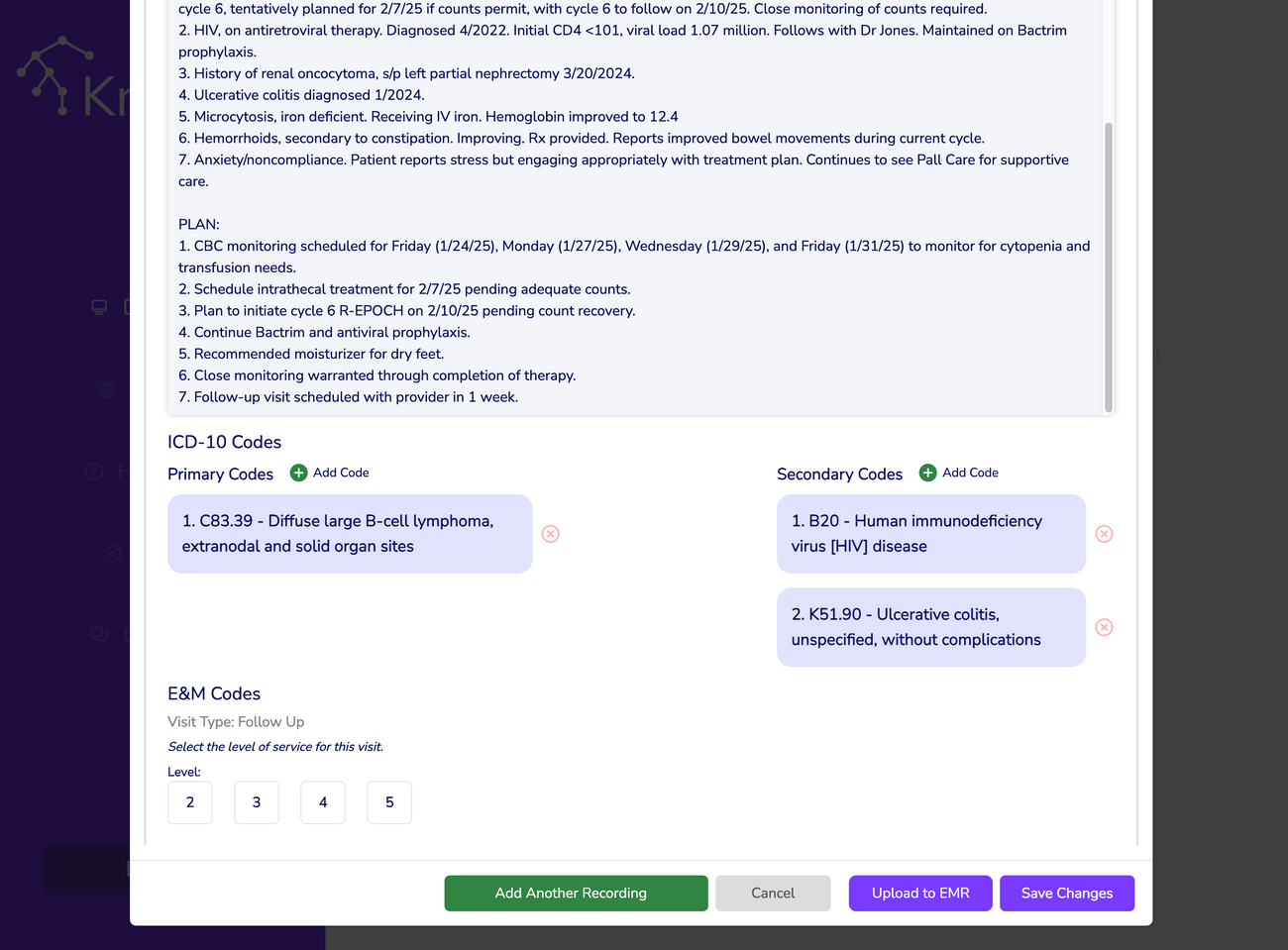
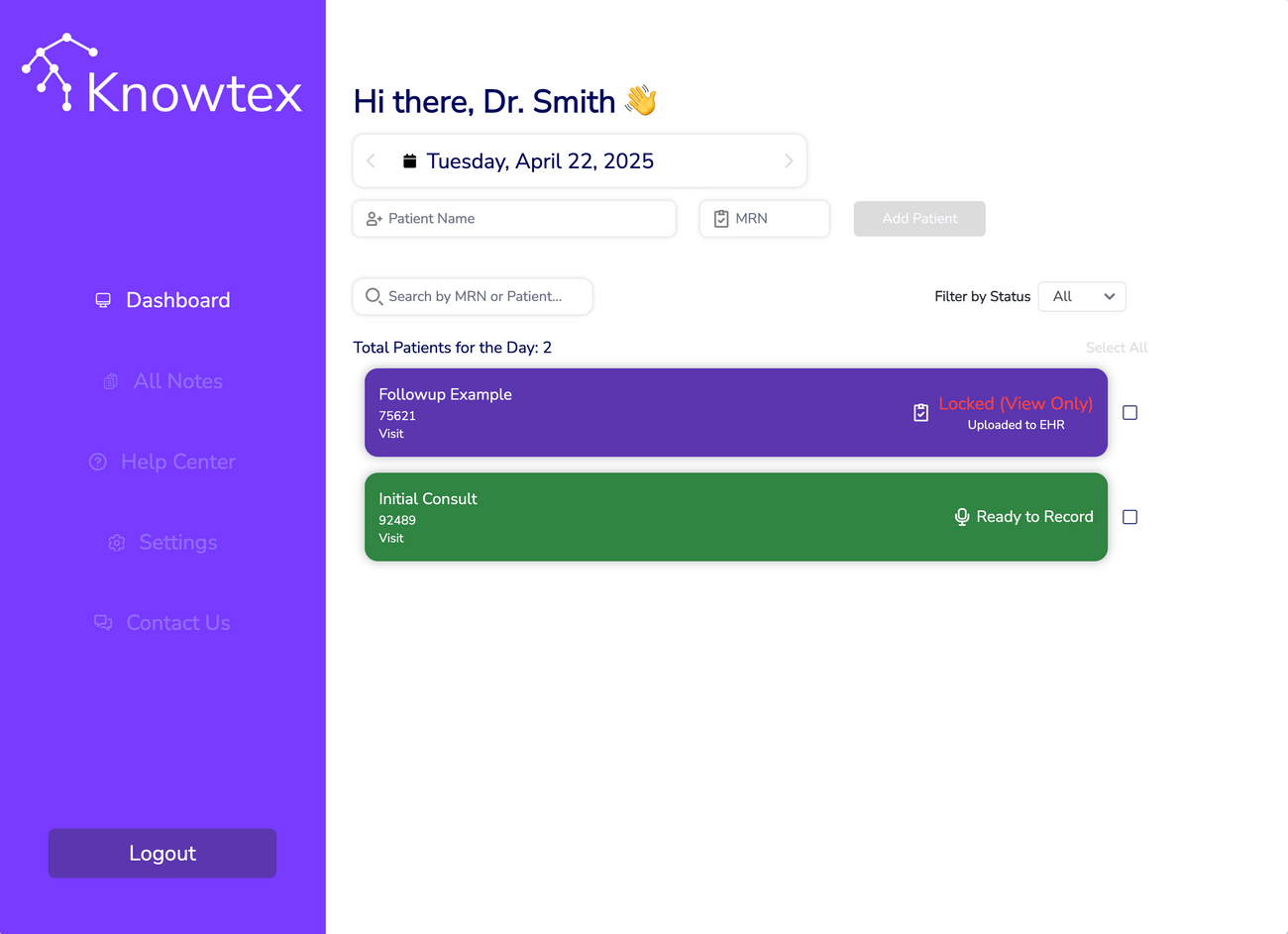
After clicking the button, your note will switch to "Locked (View Only)" and show "Uploading to EMR." and you will no longer be able to edit the note as it is being sent to the EMR. You can view your note in the EMR after Knowtex shows "Upload to EMR."
Copying Notes
To copy the note, simply highlight the text, right click, and select “Copy,” or you can click the clipboard icon at the right corner:
