How To Use The Macros Feature
Last updated July 28, 2025
Knowtex will dynamically suggest macros based on the transcript content and surface these for easy insertion into the note. Simply click in the note where you would like to insert the macro, select the macro from "Knowtex's Suggested Macros" and the macro will be automatically inserted into the note in the location you selected.
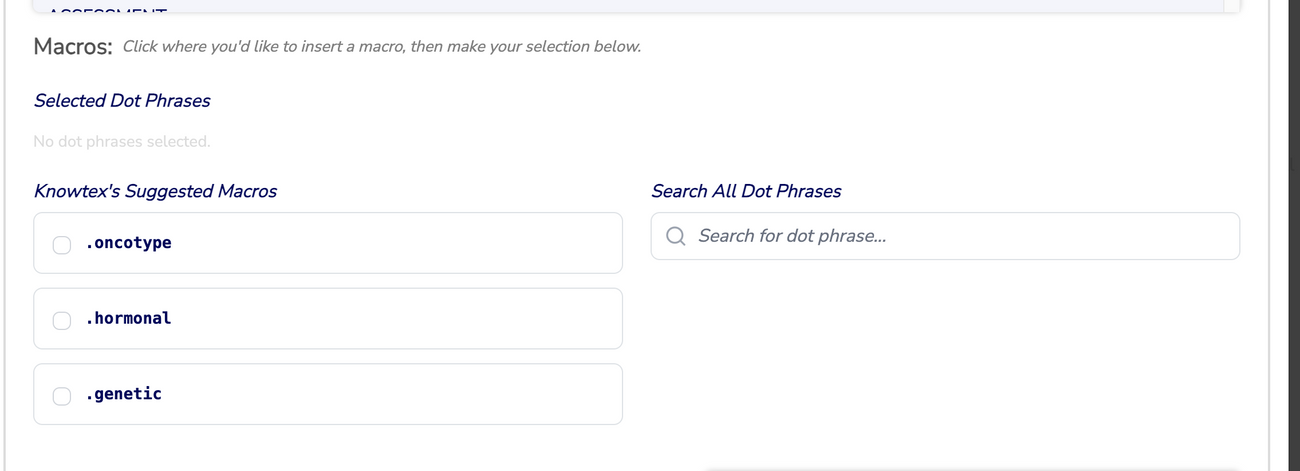
Knowtex will use its best judgement to select the appropriate macros if the dot phrase is not verbalized. If you want to ensure that Knowtex adds the dot phrase, please say "Knowtex insert {macros1, macros2} at the end."
If a macro is not present under "Knowtex's Suggested Macros" you can search for all dot phrases by using the search bar under "Search All Dot Phrases."
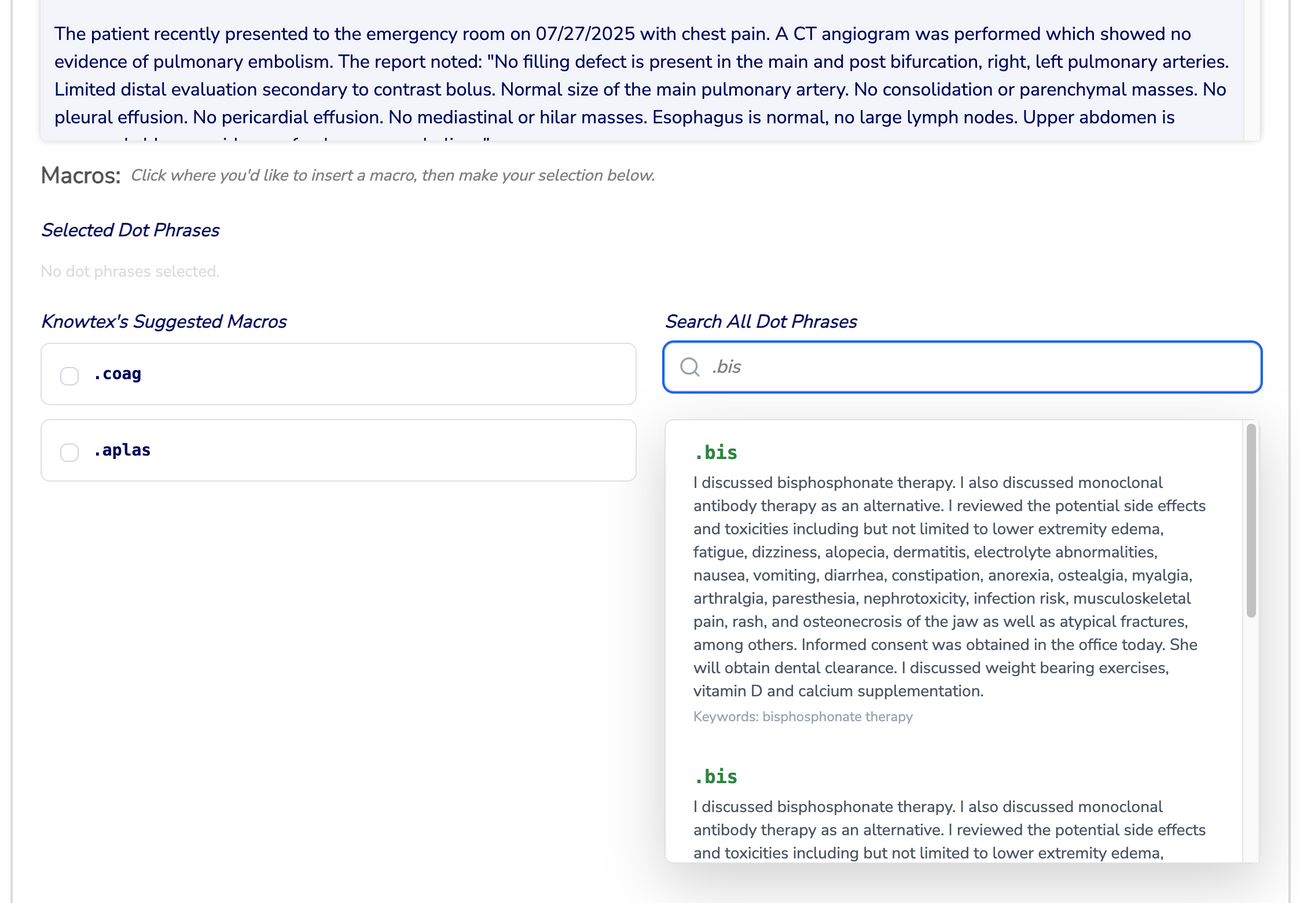
Dot phrases can either be customized on a per clinician basis, or on a per organization basis, depending on the customer's needs.