Delegate Portal Guide
Last updated January 9, 2026
The Delegate Portal is designed to make audit participation easier, clearer, and faster for delegates. It replaces email-heavy and spreadsheet-based workflows with a single, secure portal that centralizes communication and document submission.
Questionnaire Portal Overview
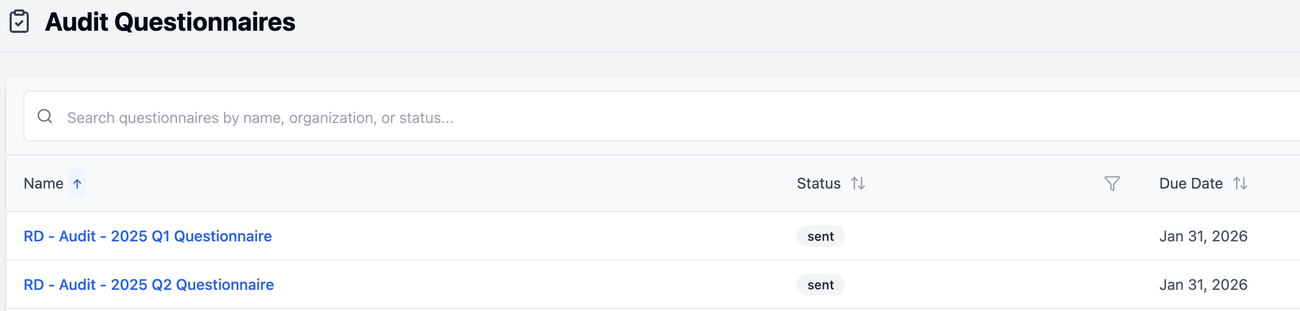
- The Questionnaire Portal displays all active audit and document requests assigned to your organization.
- Each questionnaire shows its status, due date, and overall completion progress.
- Click a questionnaire to open it and begin reviewing or responding to requests.
To Get Started
- Log in to the Delegate Portal.
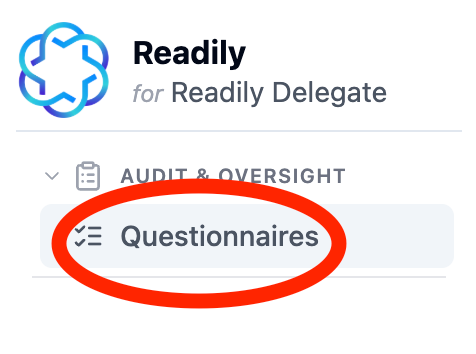
- Navigate to the Questionnaire Portal.
- You will see a list of all active audit and document requests assigned to your organization.
Inside a Questionnaire
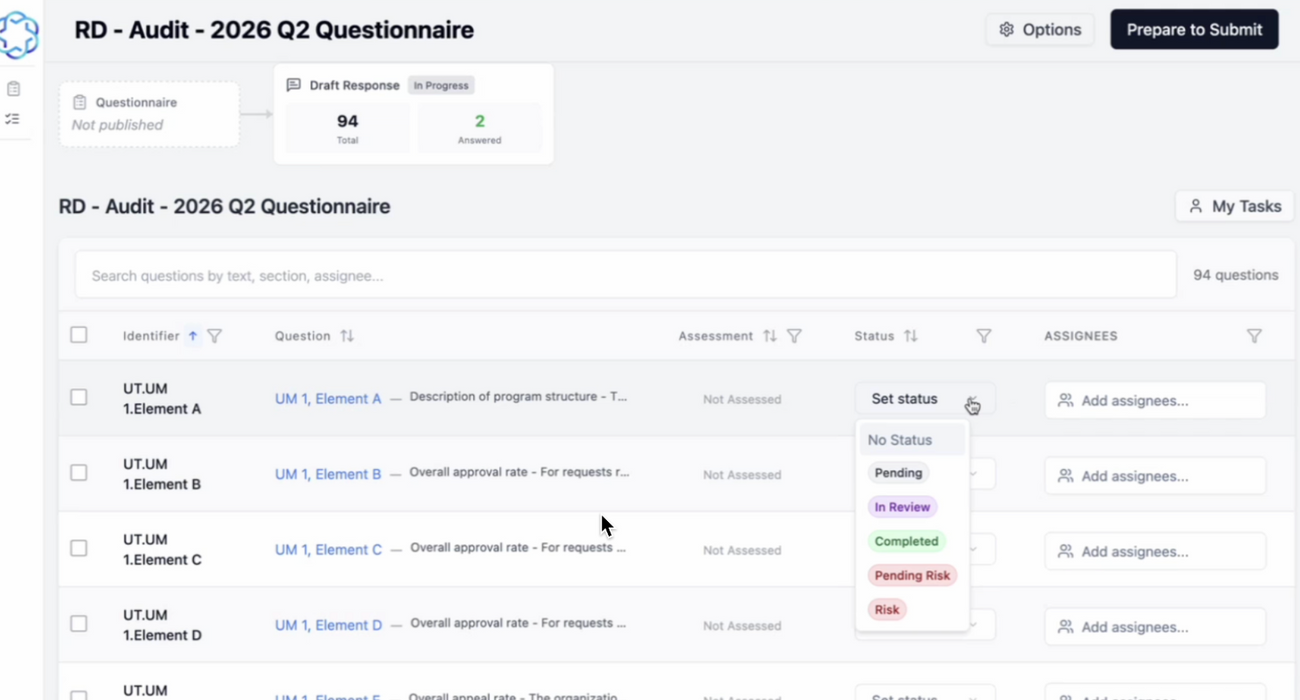
- Each questionnaire contains a list of questions representing specific audit or compliance requirements.
- From the question list, you can:
- View individual questions and their requirements.
- Set a status (e.g., Pending, In review).
- Assign questions to users within your organization to track ownership and completion.
- Use search and filters to quickly find questions by text, section, or assignee.
Respond to a Question
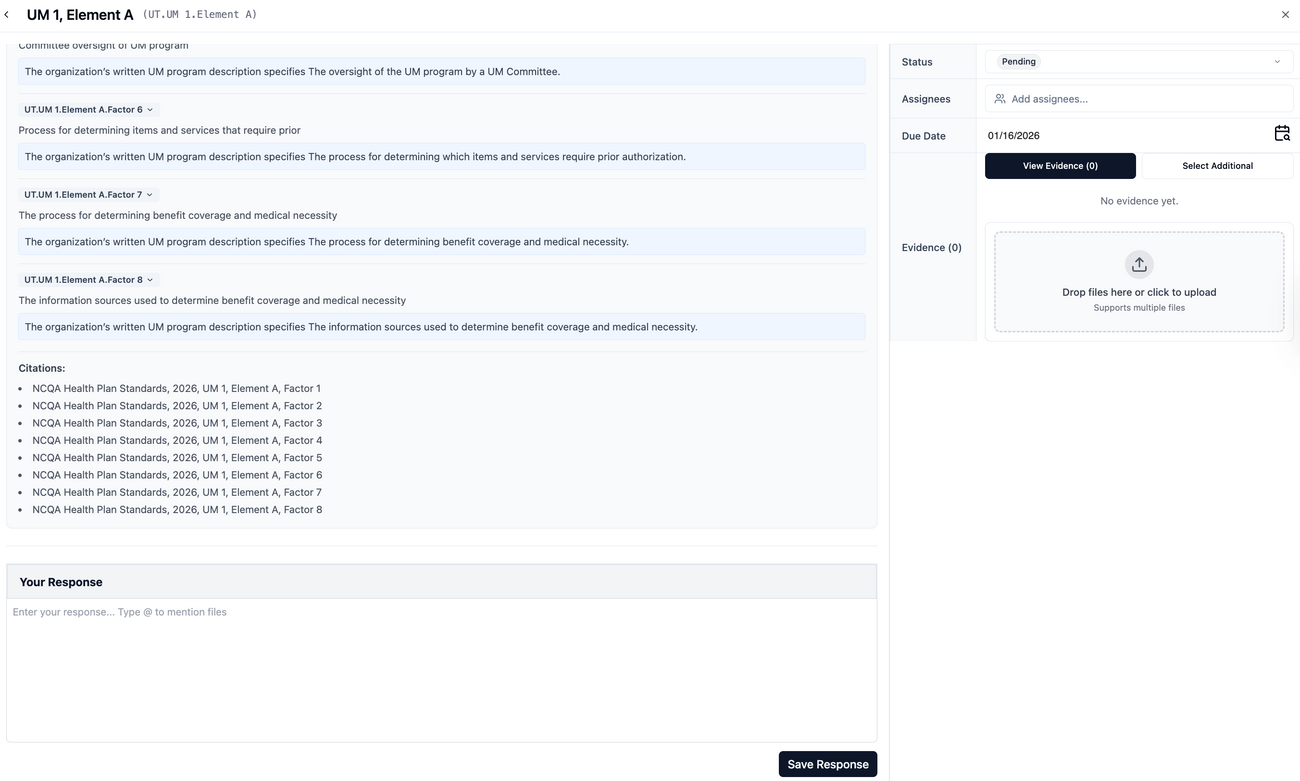
- Clicking into a question shows:
- The full requirement description and applicable standards or citations.
- Any existing text responses or linked documentation.
- You can provide evidence by:
- Uploading new documents directly to the question.
- Linking documents that already exist in your document library.
- Searching previously linked documents and attaching them to the question.
- In the text response field, you can:
- Add narrative context or explanations, @mention documents to clearly reference supporting evidence.
Tracking Progress
- Each question tracks its own completion status and evidence attachments.
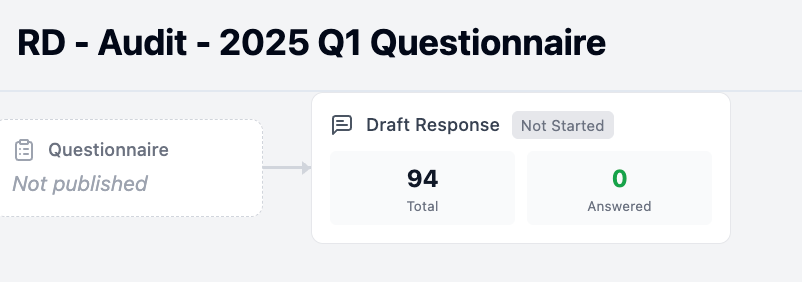
- The questionnaire header summarizes:
- Total questions
- Answered vs. unanswered questions
- Use assignees and statuses to coordinate work across your team and monitor progress.
Submitting the Questionnaire
- Once all questions are answered and the required evidence is attached:
- Click Prepare to Submit to review completion status.
- Confirm submission to send the response back to the auditing organization.
- After submission, the questionnaire becomes read-only and can no longer be edited.

Inviting Team Members
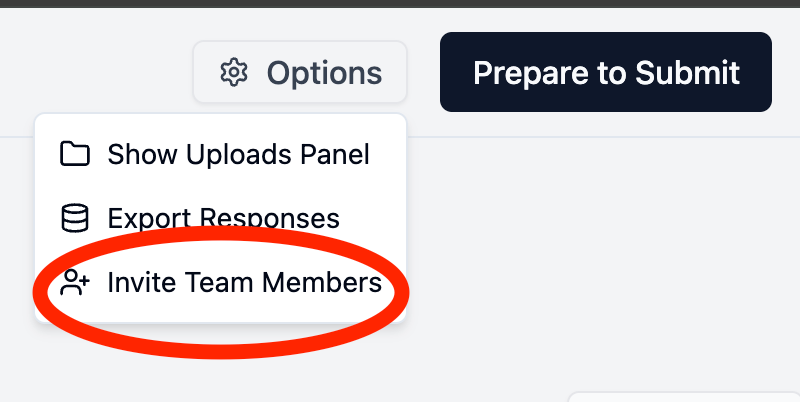
- To invite team members, click Options.
- Then, Invite Team Members.
After Submission
What to Expect from the Auditor
- Auditors review each question based on the applicable standards and requirements.
- They evaluate both:
- The text response provided
- The supporting documents and evidence attached to the question
For each question, the auditor will record an assessment, indicating whether requirements are met or if follow-up is needed.
Possible Auditor Outcomes
Requirement Met
- The provided documentation and response fully satisfy the requirement.
- No further action is needed unless requested later.
More Information Required
- The auditor needs clarification, additional context, or supporting documents.
- Specific feedback or requests will be included in the assessment.
Not Yet Met
- The current response does not meet the requirement.
- The auditor will outline what changes or evidence are needed to proceed.
- Ongoing Collaboration
Auditors can request additional documents or updates directly within a question.
- All feedback, responses, and assessments are tracked historically, ensuring transparency and audit readiness.
- You can respond directly to the auditor's feedback by updating the question response and uploading additional evidence.
Was this article helpful?