View and Edit Notes
Last updated March 3, 2026
Viewing Notes
Please allow for software processing time after the audio has been uploaded to the note being created. This processing time can vary depending on the length of the audio file and internet connection. You can expect the generated note to be ready within 1-2 minutes after uploading.
Once a note has been generated and is ready for your review, the status will change to “Review”:

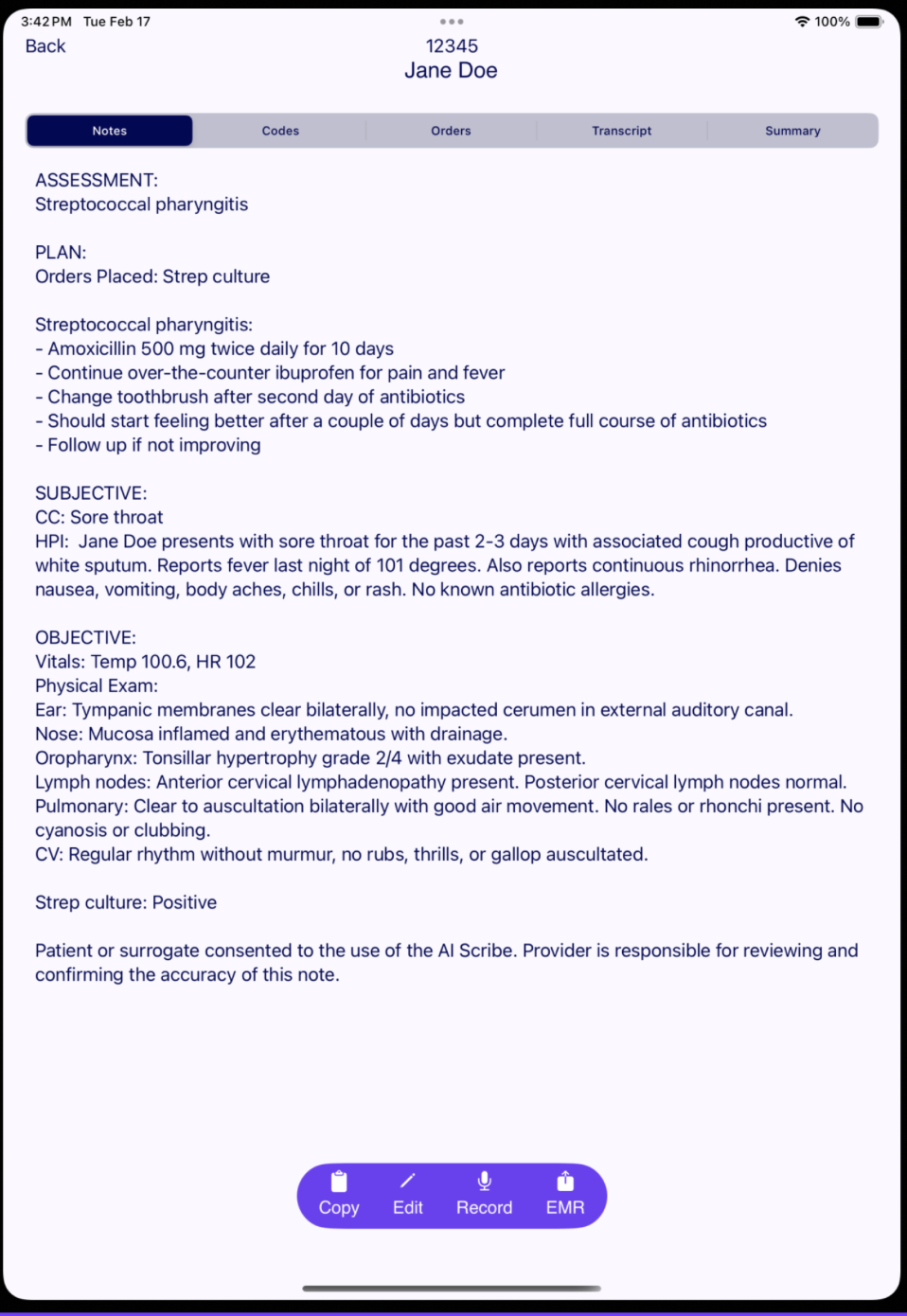
After clicking “Review” you will now see that “Note” section contains the generated note from the conversation audio:
If you would like to view all notes created so far regardless of the date, you can click on the middle icon in the Navigation bar which will take you to the following page:

Editing Notes
After a note has been generated and you have reviewed it, if you would like to make any changes to the note, you can click the “Edit” icon and type, delete, or edit any sections as needed.
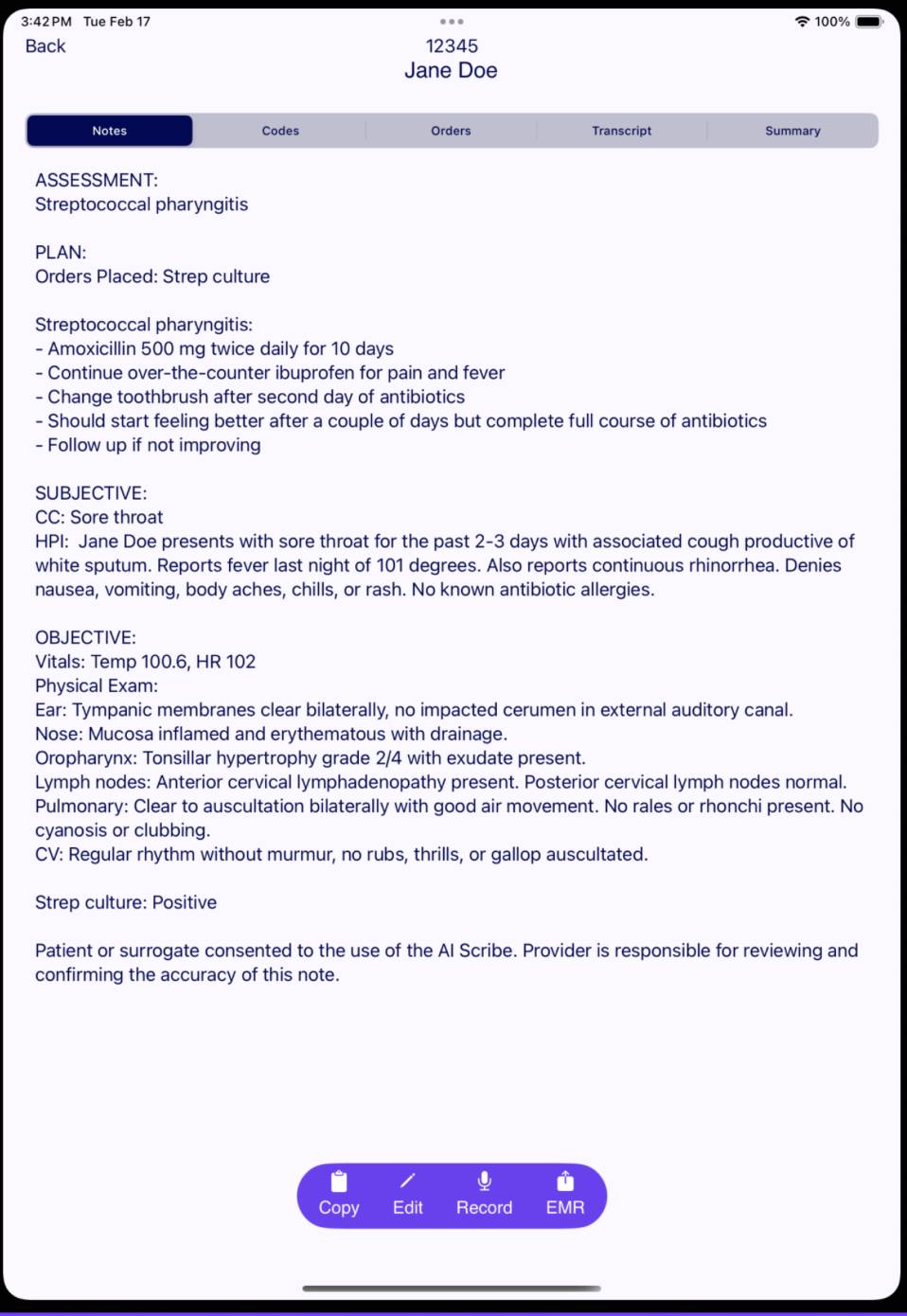
To copy the note, just click the "Copy" icon in the middle and all the text will be copied.
To review generated ICD-10 and CPT codes, as well as Orders, you can switch between the tabs at the top.
You can view the transcript of the conversation by clicking the "Transcript" tab.
The "Summary" tab provides a generated summary of the patient's visit. This summary is designed to be printed directly from your phone and given to the patient as a clear overview of their visit details.
When you are done editing the generated note, click “Save Changes.” If you would like to disregard all changes, click “Close” at the top left of the pop-up. You can also choose to record another audio here as well.