
EQUIPP® Performance Dashboard
Last updated November 19, 2025
After logging into EQUIPP®, you will be greeted with the performance dashboard. This screen will serve as the home screen, which can always be accessed by clicking on the EQUIPP logo.
Dashboard Views and Filter Bar
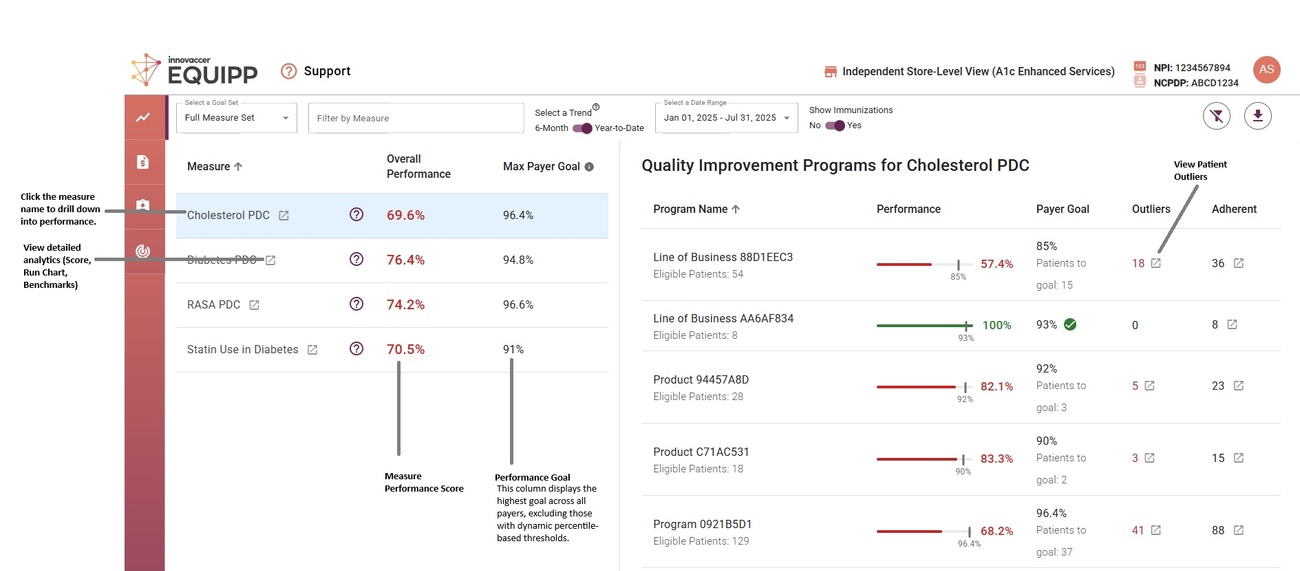
Let's first look at the View and Filters
Prioritize payer programs and patient opportunities by filtering data and customizing your dashboard.
Choose specific measures to display, change the trend period or date range, and turn the immunization measures on or off.
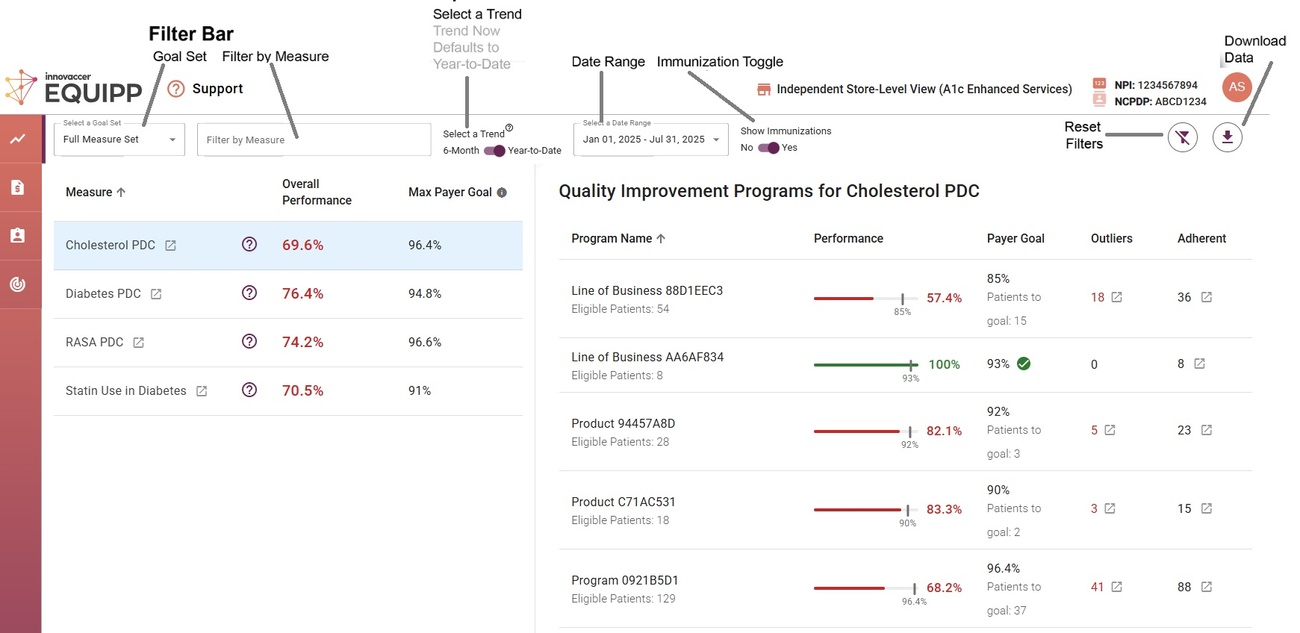
Filter Bar Contents:
| Goal Set - select between Full measure set, Top 20% Medicare 6 Month/YTD, Top 20% 6 Month/YTD, and the CMS Star Measures | Immunization Toggle - turn the display of these measures on or off |
| Filter by Measure - to view a customized list of measures | Filter Reset - return filters to default |
| Select a Trend - either 6-month or Year-to-Date | Download Data - download a .csv file of the measure's data |
| Select a Date Range - select a data date range for the performance scores | |
List View
List View is a simplified chart of the performance data.
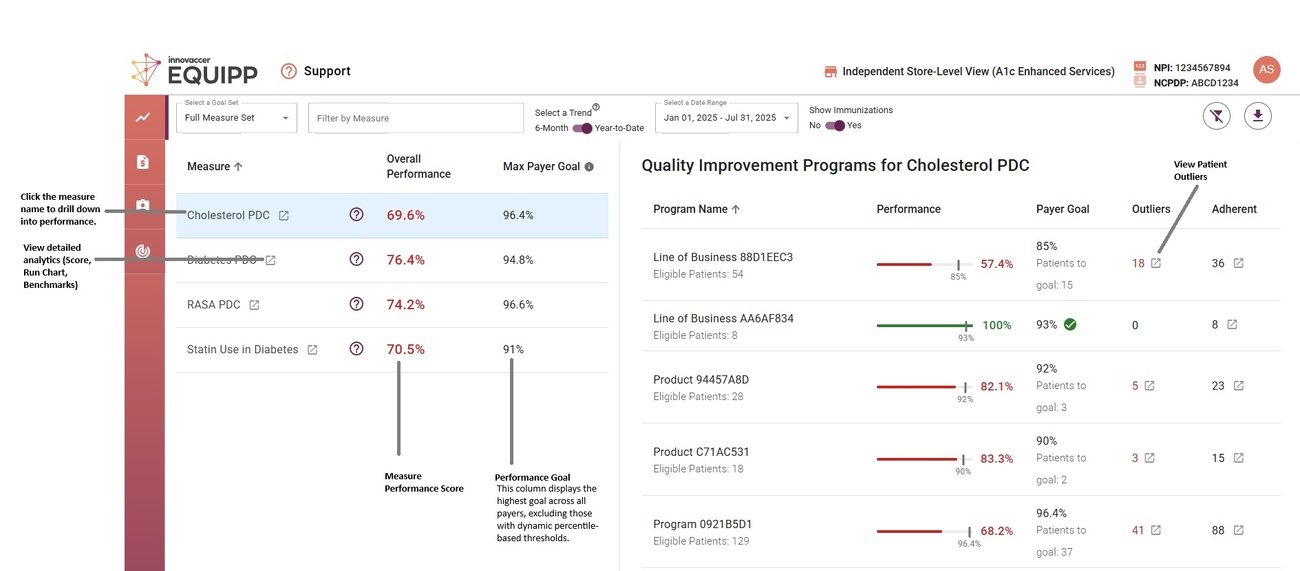
Measure Name, Performance Score, Goal, Outliers, and Patients are now listed in rows and columns, similar to an Excel file for easy download purposes.
Understanding the List View
| Measure Performance Score - Overall pharmacy measure performance score including all included patients across all participating programs and plans | Patient Outliers (if any) - Click on the arrow in the box symbol to see a list of patient outliers within the measure for each program. |
| Performance Goal - the average goal among the participating programs and plans within each measure |
Click the measure name to see the measure-specific details in the Performance Measure and QIP Table
Downloading Performance Data
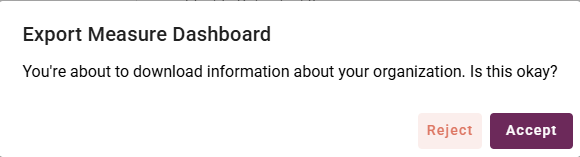
Download performance data and patient information to review at a later time or with your pharmacy team. To download the full performance dashboard data, outliers, or all patient lists, please click on the downward arrow in the top right corner of the EQUIPP screen. Click "accept" in the export request prompt, and the file will download to your computer in .csv format.