
Activity providers - Getting setup on the Short Breaks platform
Last updated April 1, 2026
In this article, you'll learn how to create an account on the platform and review your profile and activities
How to create your account
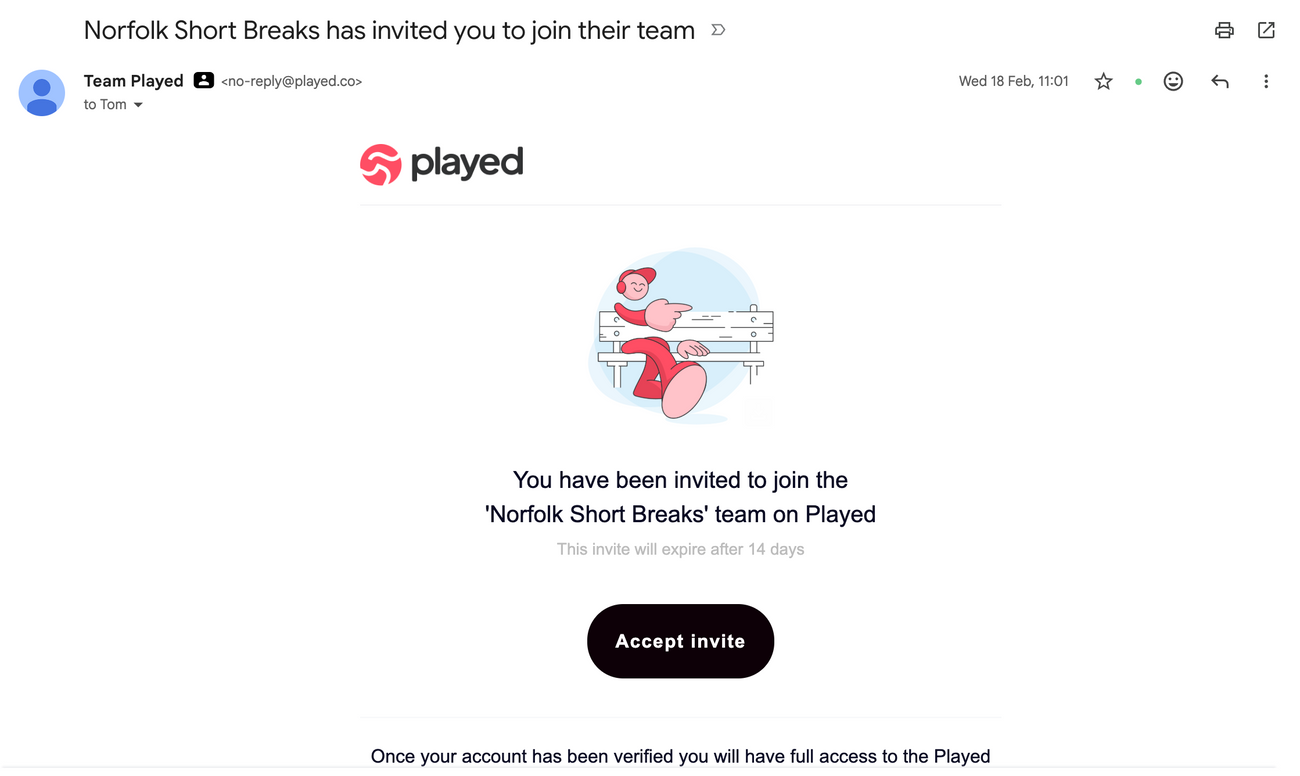
Step 1: Keep an eye out for an email from 'Team Played" with the subject line "Norfolk Short Breaks; has invited you to join their team."
Step 2: Open the email and click on the accept invite button.
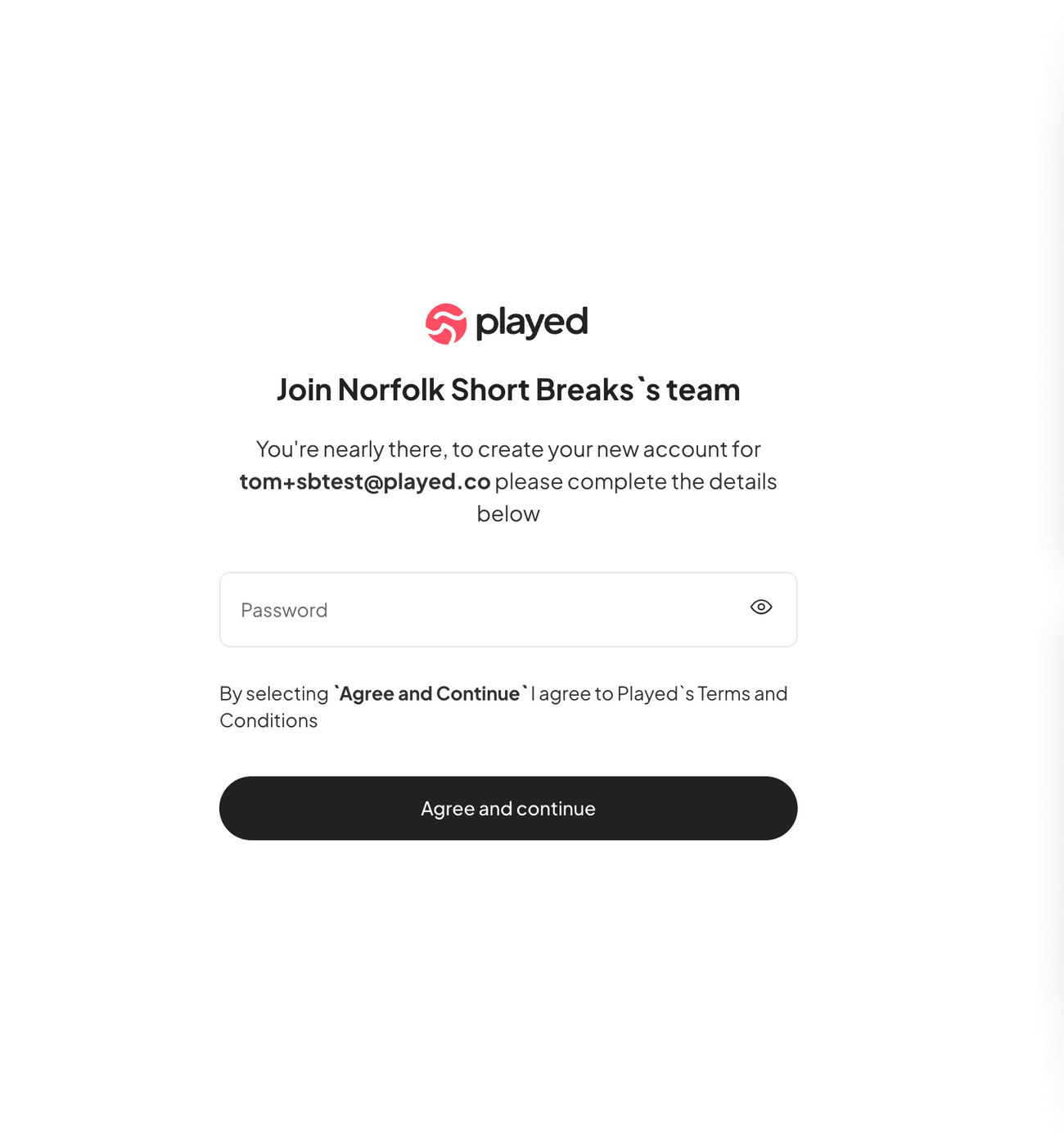
Step 3: Create a password for your account.
Step 4: Click on the agree and continue button.
Step 5: You'll be prompted to sign in. Enter the email address you were invited with and the password you just created.
Step 6: Click on the sign in button to access your account.
And that's it! You've successfully created your account and you will receive notifications by email when people make a booking.
How to review your provider profile
Step 1: Once logged in, navigate to the 'Settings tab' - if on mobile, click on the menu in the top right
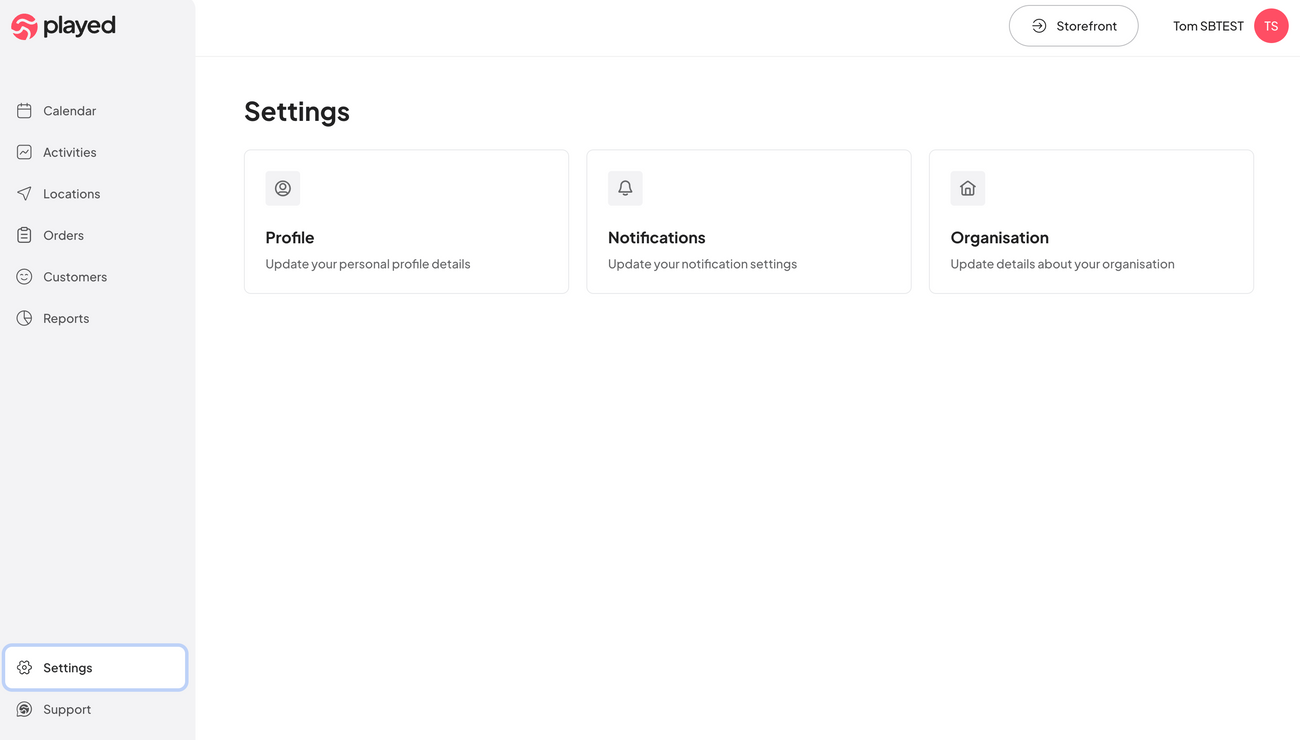
Step 2: Once in settings click on 'Organisation profile'
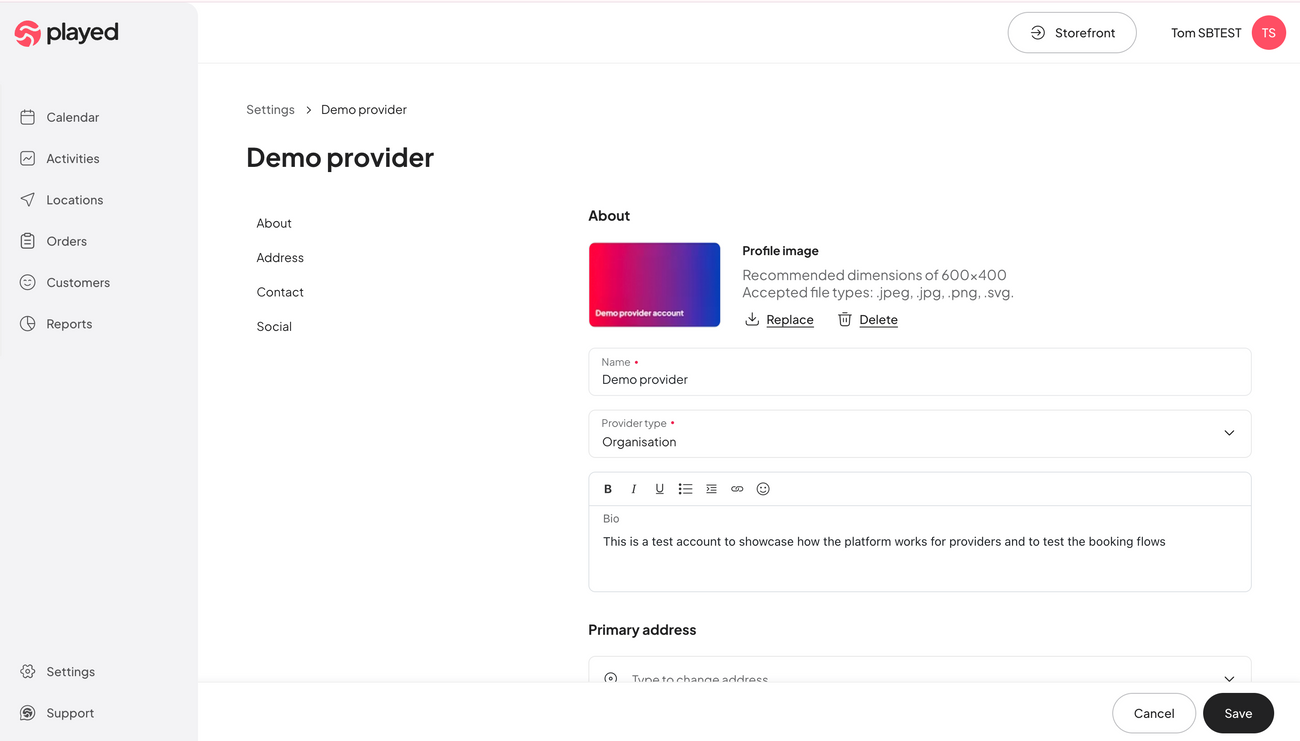
Step 3: On this page, you can review your organisation details, such as your image, description, social media links and more, if making any changes, press 'Save'
How to review your activity listings
Step 1: Once logged in, navigate to the 'Activities tab' - if on mobile, click on the menu in the top right and then select 'Activities'
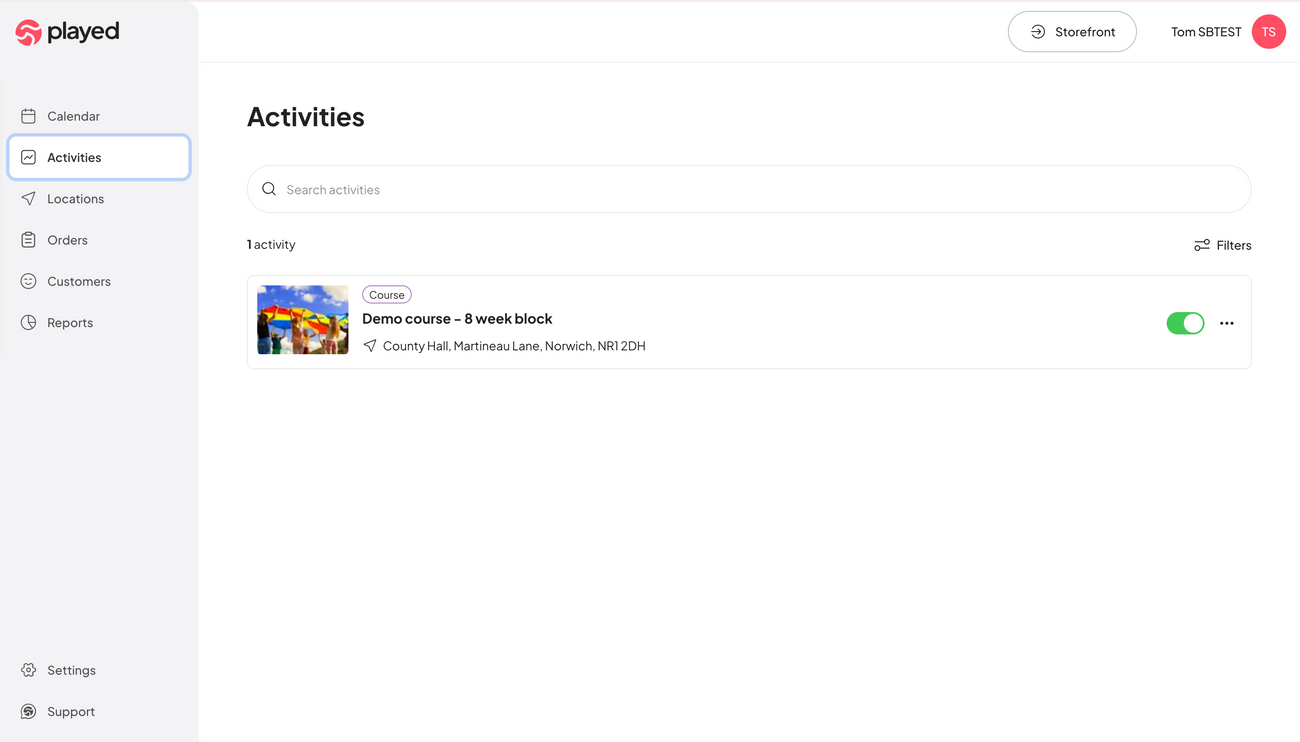
Step 2: Once in 'Activities' click on the activity item and it will open the edit screen.
Step 3: View the details of your offering to check that it's as expected
Step 4: If there are any problems with your activity listing, click on the 'Support' tab on desktop or click to the navigation menu on mobile and select 'Support'
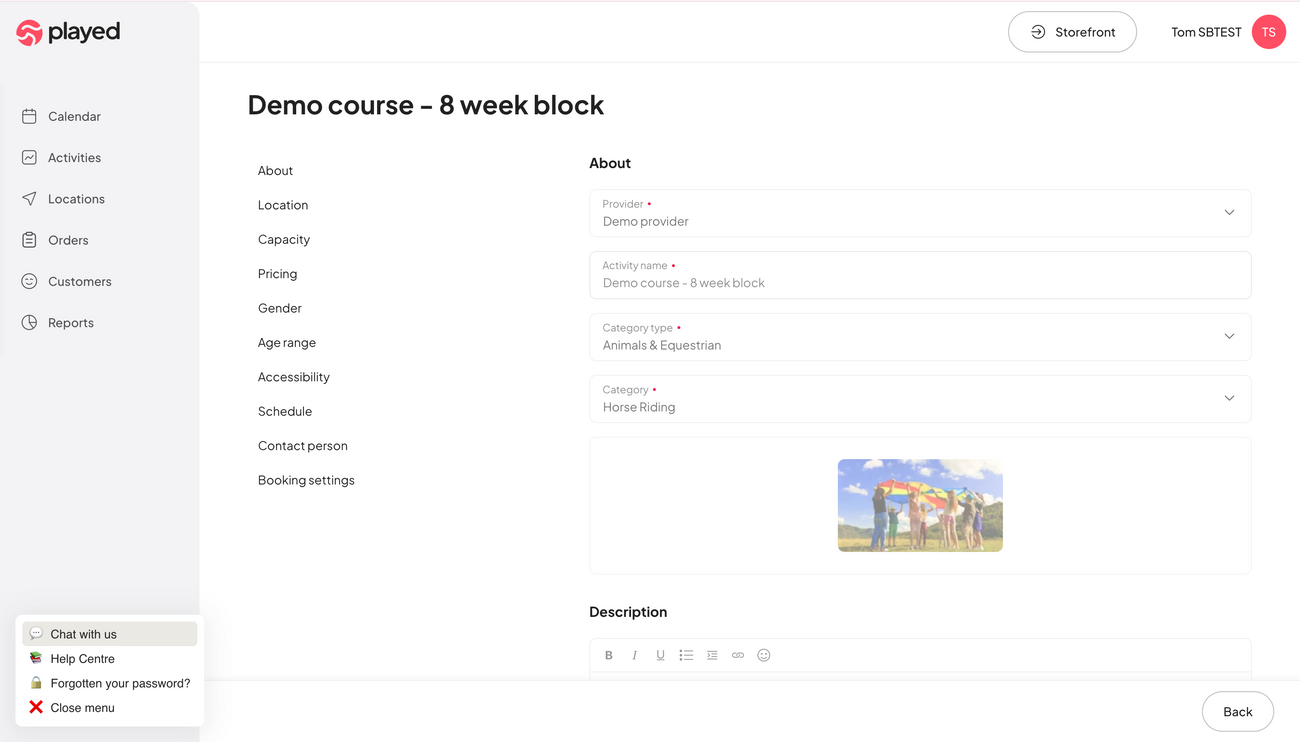
Step 5: Once support is clicked, you will see 4 options, select 'Chat with us' Step 6: Mention any incorrect elements with your activity listing and ask us to update them for you - we will let you know once any updates have been made.
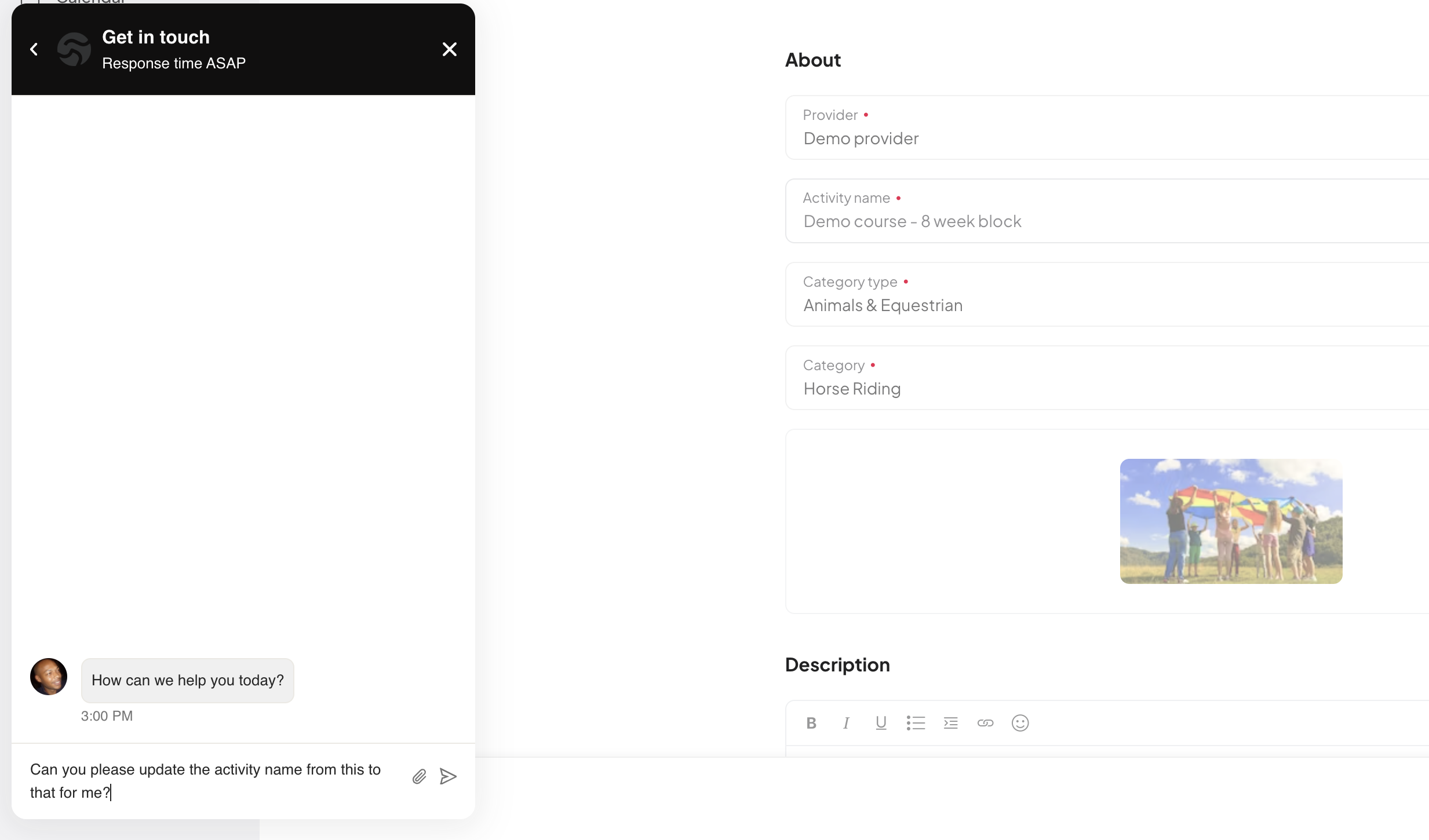
We are here to help as much as possible, any queries, please don't hesitate to contact us through the 'Support' window in the app or via support@played.co